
Floating Facecam Over Other Apps
Keep your live camera bubble visible on top of third-party iPhone and iPad apps via Picture-in-Picture, or composite your webcam cleanly on Mac.
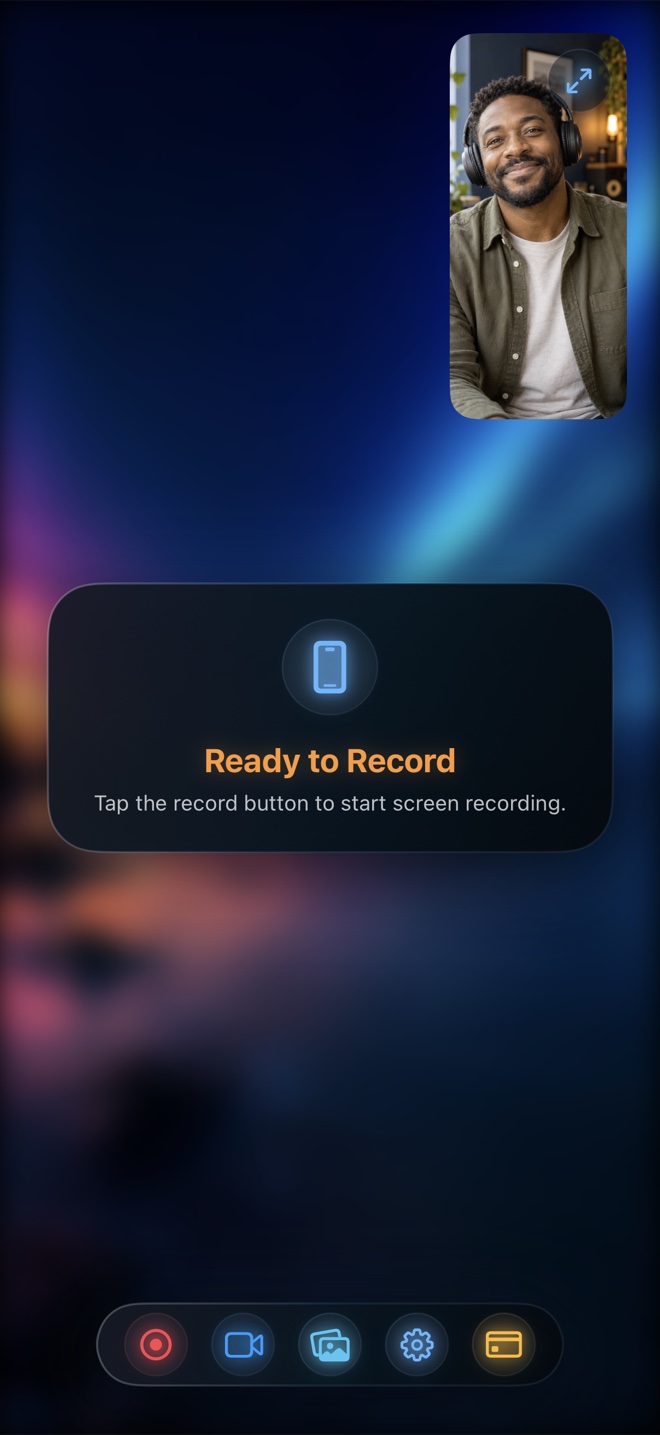
Reel Screen Recorder keeps a live Picture-in-Picture facecam over the app you are demonstrating, balances internal app sound against your microphone, and saves an edit-ready MP4 right on your device.
Real-Time Single-Pass Capture
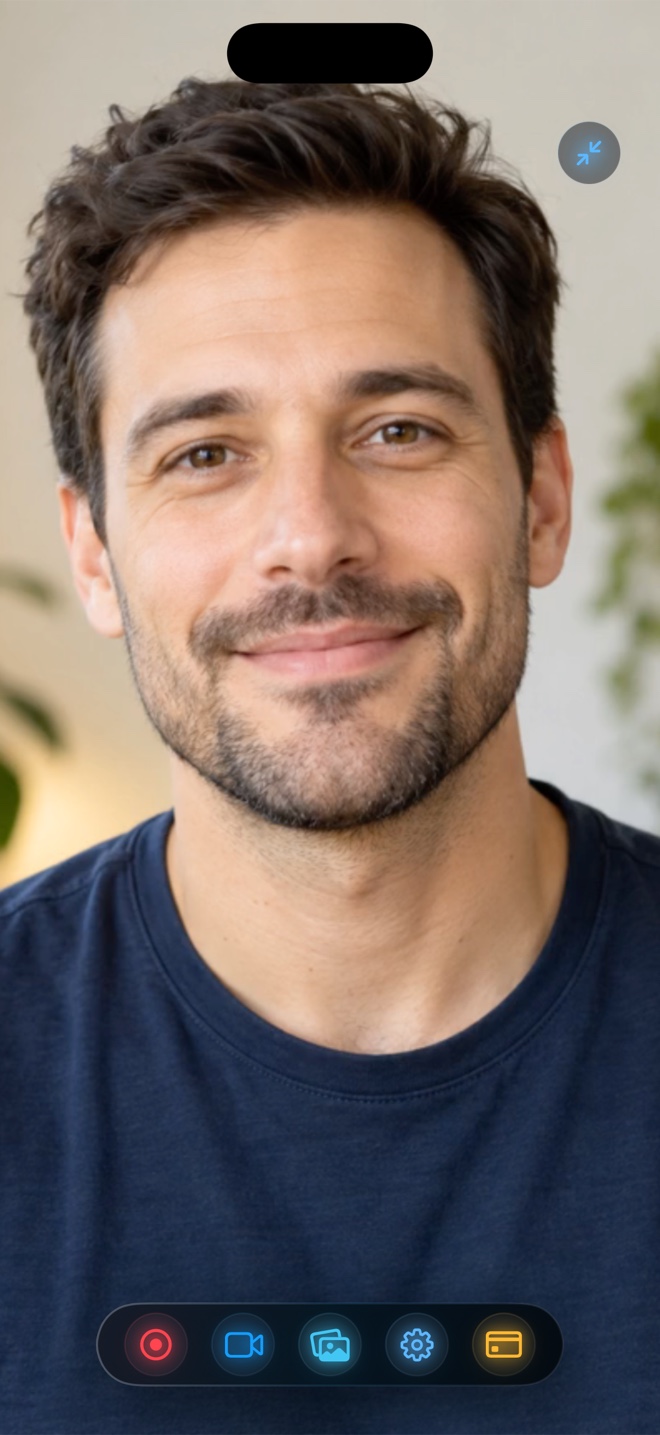
Demonstrate mobile interfaces, critique video cuts, or walk through desktop code while viewers see your expressions and hear balanced audio.
Keep your live camera bubble visible on top of third-party iPhone and iPad apps via Picture-in-Picture, or composite your webcam cleanly on Mac.

Adjust or mute microphone and internal app audio independently, mixed into a universal stereo MP4 track by default so your voice is never buried.
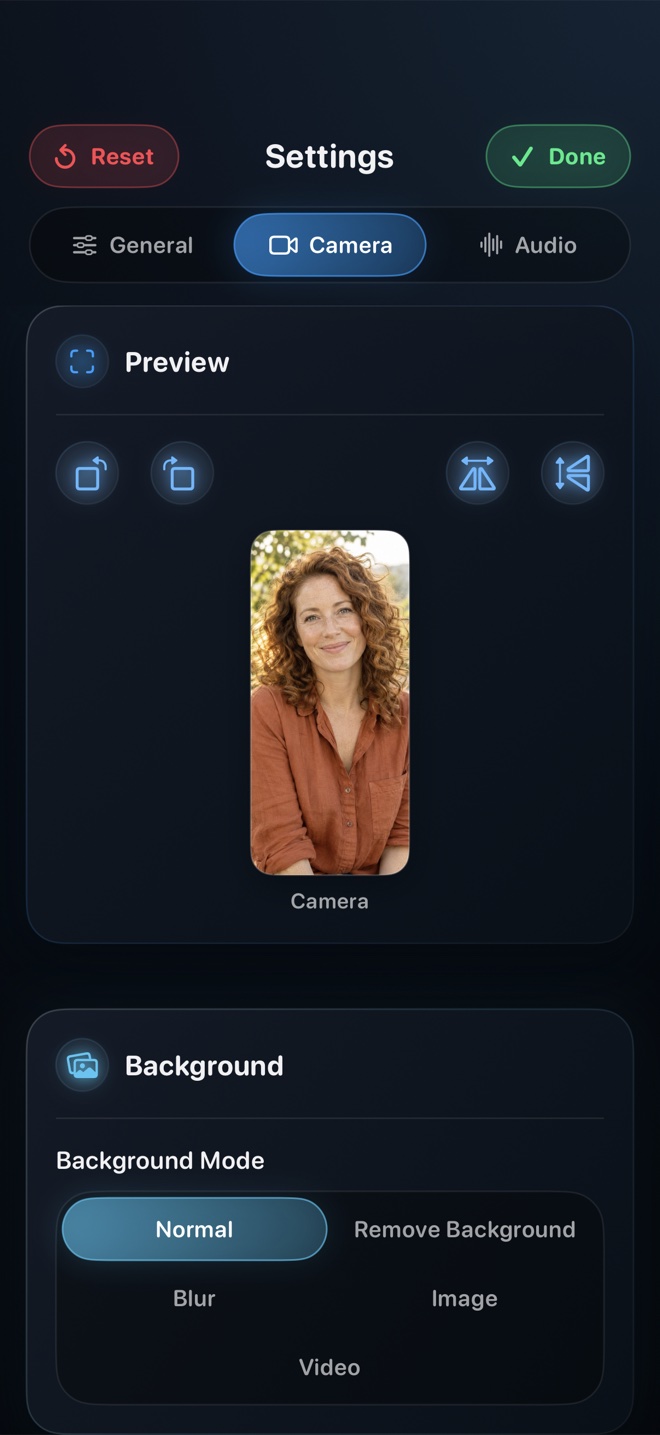

Lock vertical framing for Reels, TikTok, and Shorts or horizontal framing for widescreen games and Mac displays before frame one.
Practical Production Guides
Written around the exact recording questions iPhone, iPad, and Mac creators run into before hitting Record.
Capture crisp in-app sound alongside spoken narration on iPhone and iPad. Learn how iOS broadcast audio routing works, how to balance levels, and how to export a clean MP4.
Read workflow guide →
Learn how to keep your live camera bubble on screen while recording other apps on iPhone and iPad using Picture-in-Picture alongside iOS screen broadcast.
Read workflow guide →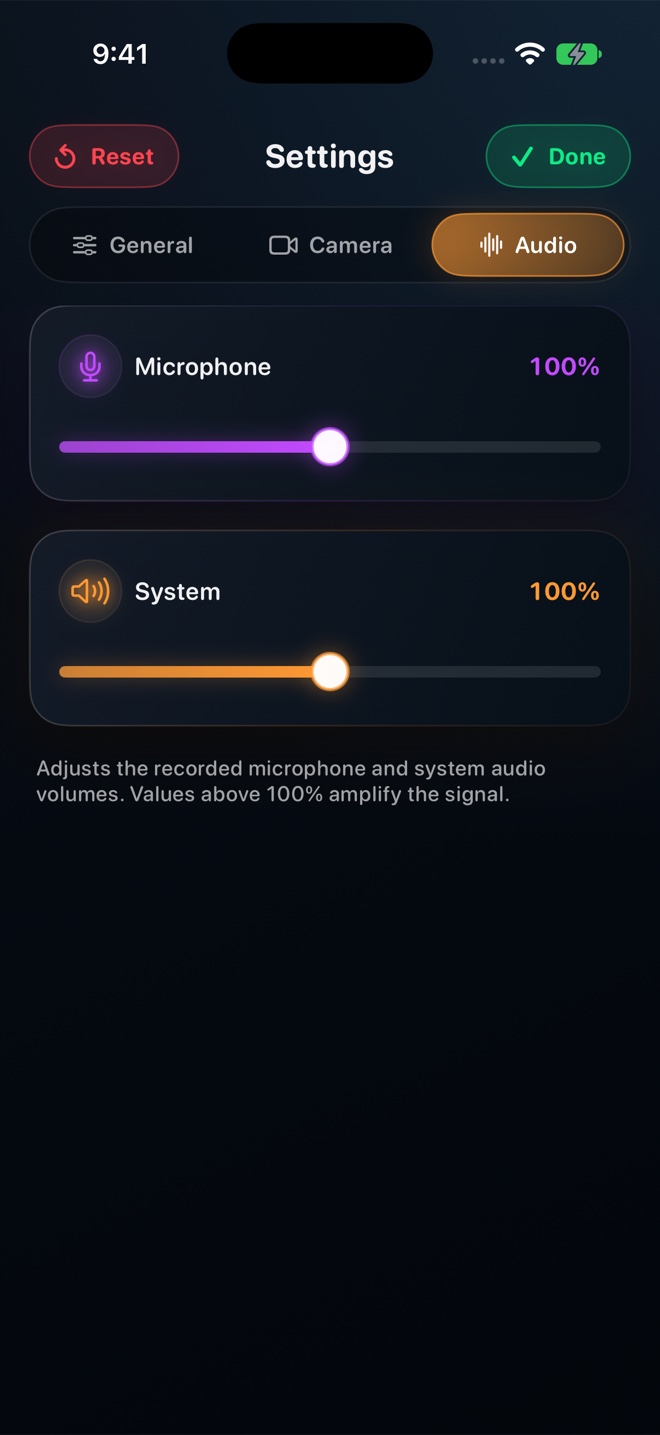
Diagnose silent screen recordings on iPhone and iPad in under two minutes: broadcast mic state, hardware mute switch, audio session conflicts, DRM, and track settings.
Read workflow guide →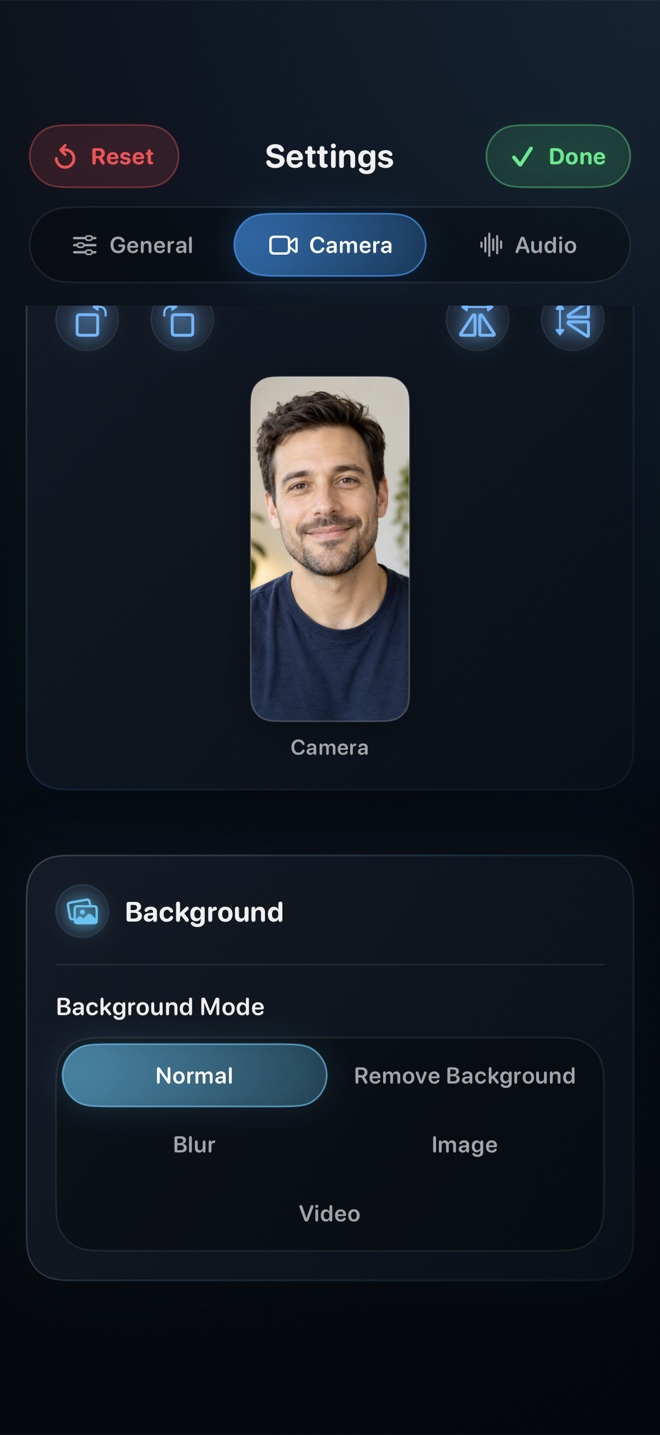
Record a clean macOS walkthrough with your face composited in frame, H.264 MP4 output, 30/60/120 fps options, and Reel's control window hidden from the capture.
Read workflow guide →
Practical layout, eye-line, lighting, and corner-choreography rules so your Picture-in-Picture facecam adds trust to screen tutorials without hiding key buttons.
Read workflow guide →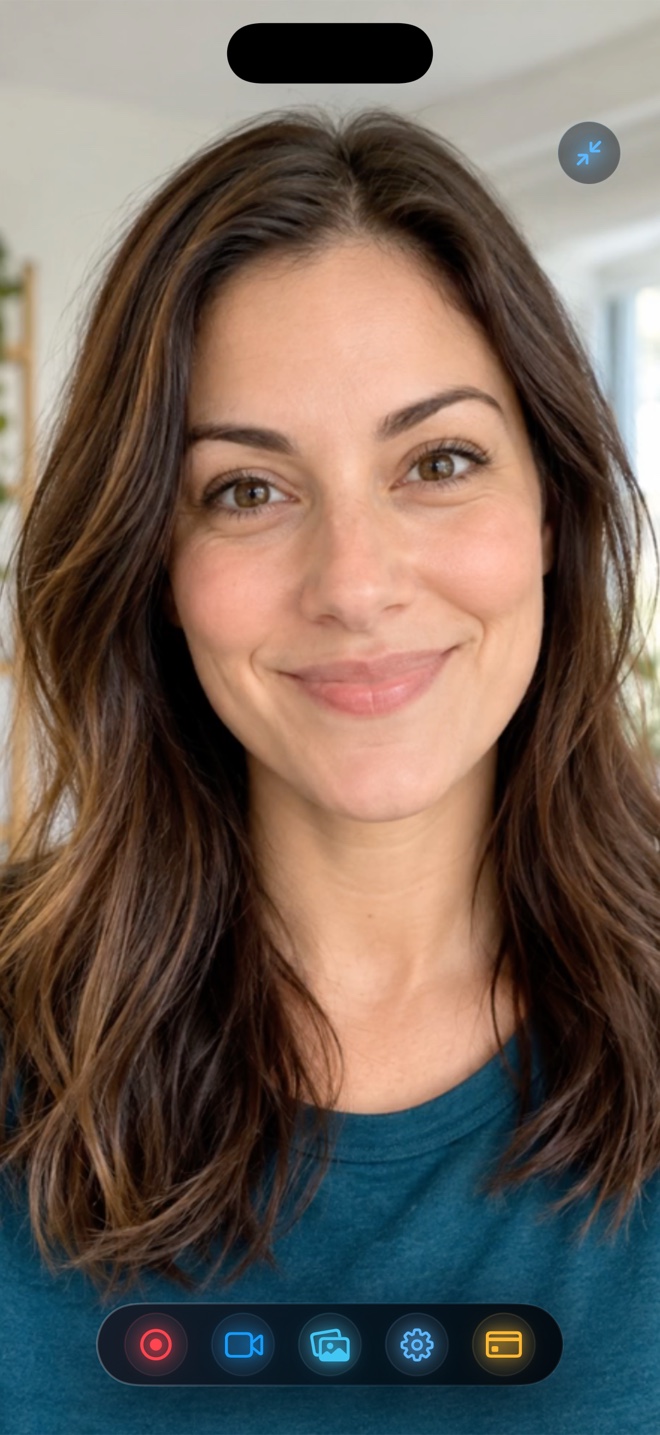
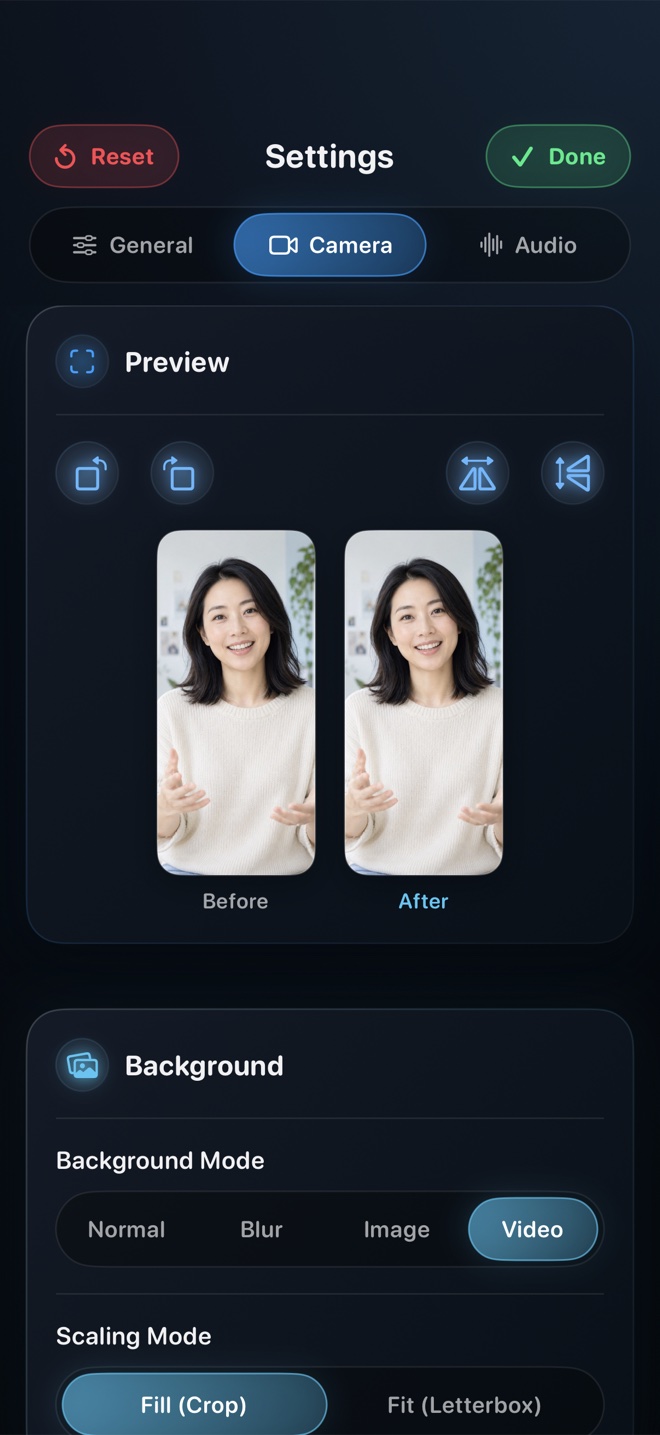
Hide messy rooms when recording tutorials on iPhone, iPad, or Mac. Understand on-device person segmentation, blur vs custom backdrops, and Picture-in-Picture background modes.
Read workflow guide →
Prevent sideways videos and black pillarbox bars when recording vertical Reels/Shorts or widescreen landscape games on iPhone and iPad.
Read workflow guide →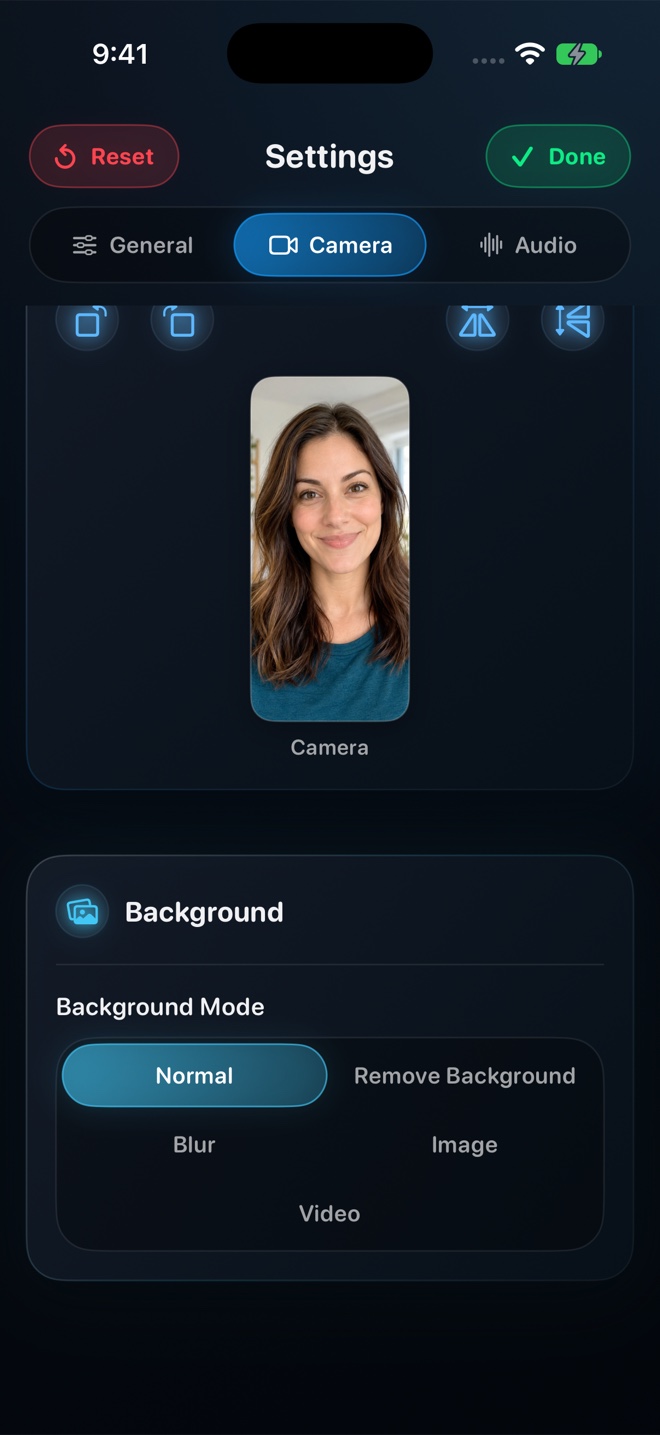
Understand how Reel's 480p, 720p, 1080p, and Pro Source (Native) quality tiers size your video, preserve aspect ratio, and export compact HEVC/H.264 MP4 files.
Read workflow guide →
Film design critiques, gameplay breakdowns, and video reactions on one iPhone or iPad with synchronized screen playback, clear voice audio, and no mic echo.
Read workflow guide →
A repeatable production checklist for indie developers, educators, and product teams recording app demos, onboarding clips, and App Store Preview source footage.
Read workflow guide →Comparisons & Buyer Guides
Side-by-side feature matrices, audio routing specs, privacy models, and pricing math across iPhone, iPad, and Mac.
Compare Reel Screen Recorder vs the iOS Control Center recorder: cross-app PiP facecam, independent app and mic audio mixing, background blur, and MP4 output.
Reel Screen Recorder vs Loom on iPhone, iPad, and Mac: compare direct on-device MP4 files and one-time Pro pricing against cloud links and per-seat team plans.
Compare Reel Screen Recorder vs OBS Studio on Mac: fast single-pass MP4 capture with neural webcam blur versus multi-scene live streaming and broadcast rigs.
Compare Reel Screen Recorder against QuickTime Player and Cmd+Shift+5 on Mac: internal system audio + mic mixing, floating blurred webcam, and MP4 vs MOV files.
Compare Reel Screen Recorder, CleanShot X, and ScreenFlow: standalone iPhone/iPad + Mac capture vs screenshot annotation suites and full timeline editors.
Compare live Picture-in-Picture facecam recorders vs post-recording reaction apps and two-device workflows on iPhone: audio sync, background blur, and pricing.
Honest Pricing
No forced trial traps or cloud accounts—your recordings never leave your device.
Full screen and camera recording across iPhone, iPad, and Mac.
One Apple In-App Purchase shared across your iPhone, iPad, and Mac.
Frequently Asked
Yes. Reel uses Apple's ReplayKit Broadcast Extension to capture in-app audio alongside your microphone, with independent volume/mute controls and single-track MP4 mixing enabled by default.
Reel pairs your screen broadcast with a floating Picture-in-Picture camera overlay on iOS and iPadOS, and composites a floating camera window directly into your recording on Mac.
Recording your screen and camera at 480p, 720p, and 1080p—including audio controls and camera background blur or image backdrops—is free with ad support. Reel Pro ($0.99/mo, $9.99/yr, or $14.99 lifetime in the US App Store) removes ads and unlocks Source (Native) resolution.
All recordings stay locally on your iPhone, iPad, or Mac in standard MP4 format (HEVC on iOS, H.264 on Mac). Nothing is uploaded to an Arte Soft cloud server.