| Where Viewers Watch | Target Orientation | Pre-Recording Rule |
|---|---|---|
| Instagram Reels, TikTok, YouTube Shorts | Portrait (vertical) | Lock Portrait in Reel & iOS Control Center before countdown |
| Mobile games & landscape video timelines | Landscape (horizontal) | Set Landscape mode in Reel and open the landscape app right as capture begins |
| App Store Previews (iPhone vs iPad) | Device-native orientation | Never rotate mid-take; record separate portrait and landscape clips |
Why Mid-Recording Rotation Causes Black Bars
An MP4 video file has a single fixed pixel width and height from frame one to the final frame. If the encoder initializes a vertical canvas while you are still on a portrait Home Screen and you then turn the phone sideways, the recorder has only two choices: letterbox the wide image inside the vertical canvas, or store sideways frames.
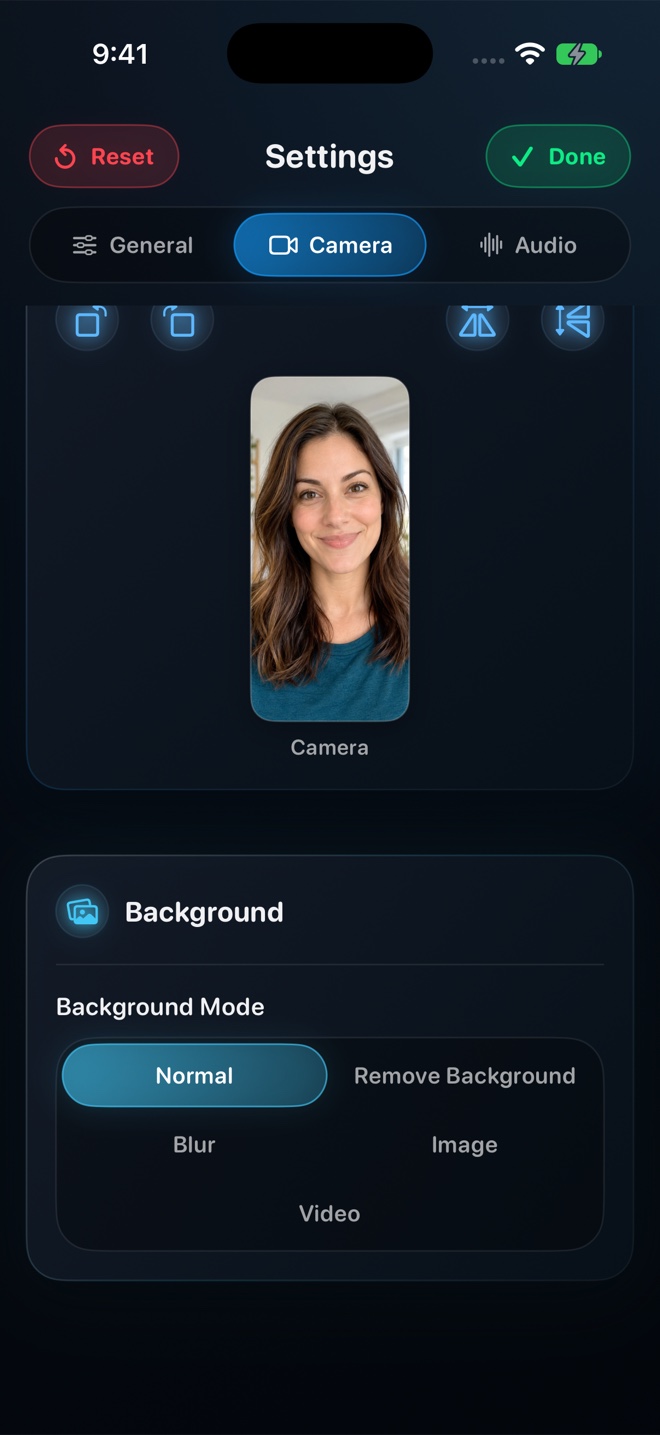
Reel includes orientation lock and manual orientation controls that communicate your intended framing to the Broadcast Upload Extension before encoding begins.
Reliable Workflow for Landscape Games and iPad Demos
Because individual third-party apps handle rotation differently—some force landscape only after a splash screen, while iOS Home Screen on iPhone stays portrait—use this habit:
- Launch your target game or app first so it is already sitting in your recent app switcher in its natural orientation.
- Set your desired orientation mode in Reel Settings before initiating the broadcast.
- Start the broadcast, switch immediately to the target app during the countdown, and keep the device in that single orientation until you stop recording.
- Run a five-second test with your specific app first so you verify both video dimensions and PiP corner behavior.
Pre-Recording Checklist
Tick items before you start your broadcast—saved locally in your browser.
Common Questions
Can I record one video and use it for both YouTube widescreen and vertical Shorts?
Mobile interfaces have tiny text when cropped by 60%. For tutorials, recording a dedicated vertical take for Shorts/Reels and a landscape take for desktop YouTube looks dramatically sharper than cropping.
Does locking iOS Portrait Orientation Lock stop landscape games from rotating?
No—apps declared as landscape-only in iOS still open horizontally even when Control Center's Portrait Lock is active, which is why matching Reel's orientation mode to the target app matters.
Next Workflows to Read
720p, 1080p, or Source Native Quality: Picking Resolution Without Huge Files
Understand how Reel's 480p, 720p, 1080p, and Pro Source (Native) quality tiers size your video, preserve aspect ratio, and export compact HEVC/H.264 MP4 files.
Read workflow guide →
How to Film Clean Video Reactions and Live Commentary in One Take on iPhone
Film design critiques, gameplay breakdowns, and video reactions on one iPhone or iPad with synchronized screen playback, clear voice audio, and no mic echo.
Read workflow guide →