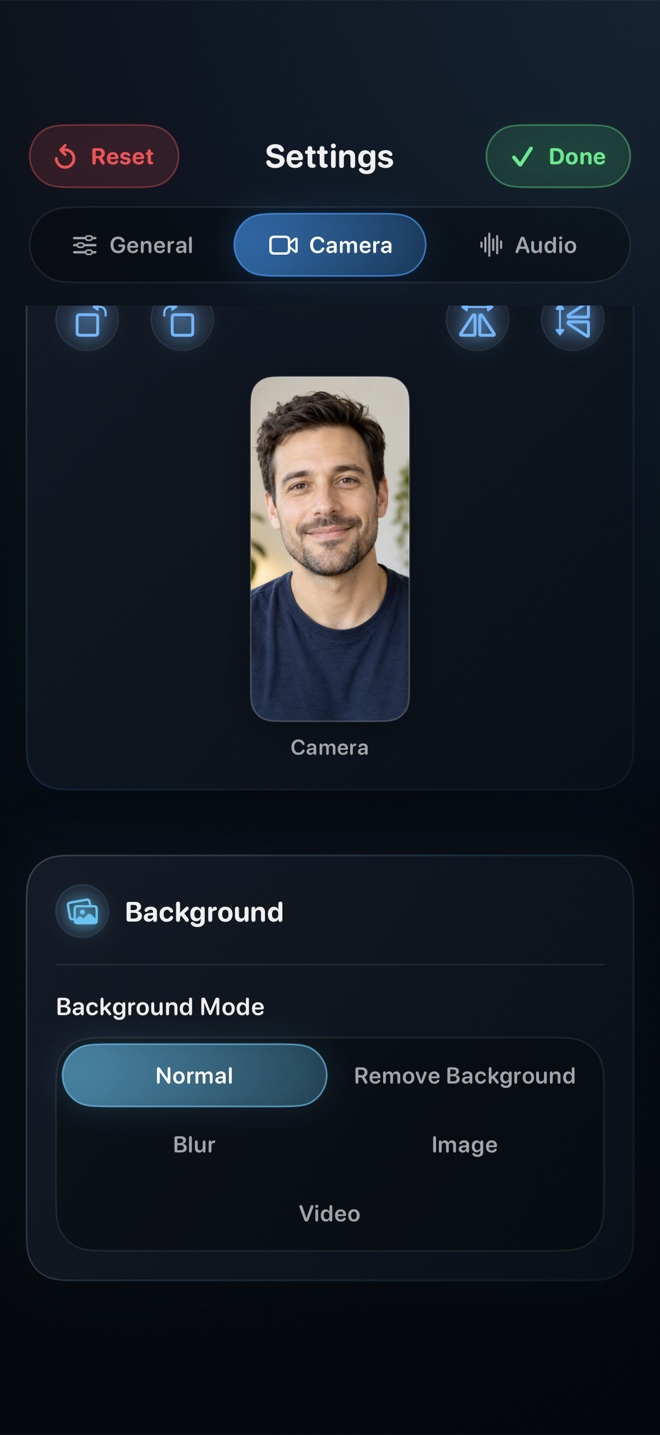
Pick OBS Studio ($0, open source) when you are live streaming to Twitch or YouTube, switching between multiple scenes and cameras, routing VST audio filters, or recording ProRes/MKV masters on Mac, Windows, or Linux. Pick Reel Screen Recorder when you want one unified recorder across Mac, iPhone, and iPad that hides its own control window, blurs or replaces your webcam background on-device without a green screen, mixes system + mic audio, supports 30/60/120 fps preferences, and writes a ready-to-share H.264 MP4.
| Capability | Reel Screen Recorder (Mac + iOS) | OBS Studio (macOS / Win / Linux) |
|---|---|---|
| Setup time to first screen + webcam MP4 | Under 30 seconds — pick display, toggle camera & audio, click Record | 5–20 minutes — configure canvas, add ScreenCaptureKit + Video Capture sources, check audio buses |
| Built-in neural webcam background blur/backdrop | Yes — native on-device person segmentation without a physical green screen | Requires physical green screen (Chroma Key filter) or third-party virtual camera / plugin |
| Exclude recorder UI from display capture | One toggle ('Hide Reel Window') keeps controls off the recorded screen | Requires placing OBS on a second monitor or capturing specific windows/apps |
| Multi-scene live switching & RTMP/WHIP streaming | No — strictly local single-pass video recording | Yes — industry standard for Twitch, YouTube Live, SRT, multi-cam scenes, and overlays |
| Audio filtering & advanced routing | Clean independent app/system audio + microphone level mixer | Multi-track mixer with noise suppression, compressor, limiter, EQ, and AudioUnit/VST plugins |
| Standalone iPhone & iPad recording | Yes — universal app works natively on iPhone and iPad with PiP facecam | No iOS/iPadOS app (can only capture an iPhone tethered via USB cable to Mac) |
Why OBS Studio Remains Unbeatable for Broadcast Engineering
OBS Studio is one of the finest open-source tools ever built for creators. If you are running a live Twitch or YouTube broadcast, combining an HDMI capture card with browser-rendered subscriber alerts, applying a downward expander and compressor to an XLR microphone, and recording a crash-safe Hybrid MP4 backup simultaneously, no lightweight recorder replaces OBS.
That power comes from treating your computer like a television control room: you manage Base Canvas versus Scaled Output dimensions, layer Z-ordered sources per scene, and verify audio monitoring matrices. When you record on a single MacBook screen without an external monitor, you also have to manage the classic 'hall of mirrors' preview window before trimming the start and end of every take.
Single-Monitor Simplicity and Hiding the Recorder Window
Most product demos, university lecture recordings, and developer walkthroughs happen on a single MacBook display with zero scene changes. You want your desktop or browser captured cleanly, your face in a tasteful corner overlay, your voice clearly above app sound, and the recorder's own buttons invisible to viewers.
Reel Screen Recorder handles that natively on macOS: pick your target display, turn on 'Hide Reel Window' so Reel's controls never appear in the captured video, set your 30, 60, or 120 fps preference, and stop cleanly into a standard H.264 `.mp4` file that uploads straight to YouTube, Slack, or GitHub Pull Requests without remuxing.
| Technical Dimension | Reel Screen Recorder (macOS) | OBS Studio (macOS) |
|---|---|---|
| Frame rate options | 30 fps, 60 fps, or 120 fps preference (on ProMotion / high-refresh displays) | Arbitrary fractional or integer FPS (24, 30, 60, 120+) |
| Output format & codecs | Direct H.264 .mp4 on Mac (HEVC .mp4 on iOS/iPadOS) | MKV, Hybrid MP4, MOV, Fragmented MP4; Apple VT H.264, HEVC, ProRes, AV1 |
| Resolution tiers | 480p, 720p, 1080p (free) or Source Native display resolution (Reel Pro) | Fully custom Base (Canvas) and Output (Scaled) pixel dimensions |
| Crash resilience on long takes | Direct local session finalization to MP4 | MKV / Hybrid MP4 / Fragmented MP4 protects multi-hour streams from power loss |
| Privacy & telemetry | 100% local MP4 storage; free tier has AdMob ads; Reel Pro is ad-free | 100% free & open-source (GPLv2), zero ads, local files unless streaming |
On-Device Webcam Blur Without Installing Virtual Camera Plugins
In OBS Studio, cleanly isolating yourself from an untidy home office without hanging a lit green screen typically means either relying on macOS Portrait Effect in Control Center or installing third-party neural background plugins that break across OBS updates.
Reel builds person segmentation directly into its camera pipeline on both Mac and iOS. With one tap you can apply soft optical-style background blur or drop a branded studio image or subtle video loop behind your shoulders, composited straight into your floating camera overlay.
| Creator Scenario | Best Choice | Practical Reason |
|---|---|---|
| Cost | OBS ($0 GPLv2) vs Reel ($0 up to 1080p; Pro $0.99/mo or $14.99 lifetime) | OBS is completely free forever; Reel is free at 1080p and adds iOS/iPadOS + neural blur |
| Live coding stream or multi-hour gaming broadcast | OBS Studio | Scene transitions, browser alert sources, chat docks, and RTMP streaming are built for live shows |
| Single-monitor Mac software demo with facecam | Reel Screen Recorder | Hides Reel's own window on one screen and blurs messy rooms without plugins or green cloth |
| Creator filming tutorials on both Mac and iPhone | Reel Screen Recorder | Identical audio mixer, camera backdrop, and MP4 workflow across Mac, iPad, and iPhone |
| Multi-guest podcast or external mixer production | OBS Studio | Per-input compressor/gate filters and six-track MKV routing fit complex studio hardware |
Bridging Desktop Mac and Standalone Mobile Walkthroughs
Modern apps rarely live only in a desktop browser. Demonstrating a cross-platform workflow—say, creating a task on Mac and showing the push notification and mobile UI on iPhone—forces OBS users to tether the iPhone via USB, lose mobile cross-app camera controls, or learn a completely different mobile app.
Because Reel Screen Recorder ships as a single universal Apple purchase, you get the exact same resolution logic, audio mixer concepts, and local MP4 output whether you are recording on a Mac Studio at your desk or filming a vertical iPhone walkthrough on a train.
Frequently Asked Questions
Can I use both Reel and OBS Studio on the same Mac?
Absolutely—they do not conflict or install kernel audio kexts. Many creators keep OBS configured for multi-scene live streams and open Reel when they want a fast, single-monitor MP4 tutorial with background blur.
Does Reel on Mac support 60 fps and 120 fps capture?
Yes. Reel on macOS exposes 30 fps, 60 fps, and 120 fps frame-rate preferences (120 fps requires a ProMotion or compatible high-refresh display and sufficient hardware headroom).
Does Reel require remuxing MKV to MP4 after recording?
No. Reel writes directly to a standard H.264 `.mp4` file on macOS so your clip is immediately ready for web upload or timeline editing.
Related Comparisons & Production Guide
Reel vs QuickTime Player & macOS Screenshot Toolbar (Cmd+Shift+5)
Compare Reel Screen Recorder against QuickTime Player and Cmd+Shift+5 on Mac: internal system audio + mic mixing, floating blurred webcam, and MP4 vs MOV files.
Reel vs CleanShot X vs ScreenFlow: Choosing the Right Mac Tutorial Tool
Compare Reel Screen Recorder, CleanShot X, and ScreenFlow: standalone iPhone/iPad + Mac capture vs screenshot annotation suites and full timeline editors.