| What You Hear on Playback | Most Likely Cause | Immediate Fix |
|---|---|---|
| App sound works, your voice is missing | System Broadcast Mic toggle is Off, or mic muted in Audio tab | Enable Microphone in the Broadcast picker AND unmute Mic in Reel |
| Your voice works, app sound is missing | Hardware Ring/Silent switch is on Silent, or app uses DRM | Flip hardware switch to Ring (use Focus mode for silence) and retest |
| Both streams cut out partway through | Incoming phone/FaceTime call or Siri hijacked iOS audio session | Enable Airplane Mode + Wi-Fi or Focus mode with calls silenced |
| Sound plays in Photos, silent in web editor | Two-track movie imported into single-track timeline | Enable Single-Track Mixed Audio in Reel Settings → General |
Cause 1 & 2: Two Separate Microphone Switches
iOS guards microphone privacy at two levels: inside the recording app's own mixer and inside the system Broadcast Upload sheet. If Microphone is muted in either place, your voice never reaches the MP4 file.
First check iOS Settings → Privacy & Security → Microphone to ensure Reel is allowed. Next, check Reel's Audio tab to confirm the mic slider is up and unmuted. Finally, when starting the system broadcast, verify the red Microphone icon in Apple's broadcast prompt says Microphone On.
Cause 3: The Physical Ring / Silent Switch Trap
Many iOS games, educational apps, and soundboards bind their audio engine to the `AVAudioSession.Category.soloAmbient` category, which obeys the physical mute switch (or Action Button Silent Mode) on the side of your iPhone.
When Silent Mode is active, those apps output zero samples—even if your media volume slider looks turned up. Turn Silent Mode off and rely on Do Not Disturb so alerts stay quiet while app audio flows normally.
Cause 4 & 5: Calls, Voice Memos, and Bluetooth Routing
Only one high-priority voice session can own iOS hardware input at a time. Joining a cellular call, FaceTime call, Discord voice room, or active dictation session while screen recording can preempt microphone capture mid-take.
Similarly, if AirPods or a wireless lavalier are paired inside a closed case—or connected to a nearby Mac—iOS may route mic input from a muffled or idle Bluetooth profile. Glance at Control Center's audio route badge before hitting Record.
Cause 6 & 7: DRM Streams and Multi-Track Editors
Encrypted streaming video and music apps intentionally zero out ReplayKit audio buffers (and often black out video frames) to enforce content licensing. No third-party screen recorder can bypass OS-level DRM.
Lastly, if your clip plays fine in Apple Photos but imports without voice into a browser editor, check Reel Settings → General → Recording Options and keep single-track audio mixing turned on so all audio lands on Track 1.
Pre-Recording Checklist
Tick items before you start your broadcast—saved locally in your browser.
Common Questions
Why did my screen recording lose audio right when an alarm rang?
System alarms and incoming calls interrupt the active iOS audio session. Pause alarms and enable Do Not Disturb before recording longer tutorials.
Can Reel recover audio from an already-recorded silent video?
If a stream was muted during capture, no audio samples exist in the file. However, if you recorded with single-track mixing turned off, check Track 2 in a desktop video editor like QuickTime or DaVinci Resolve—your second stream may still be intact there.
Next Workflows to Read
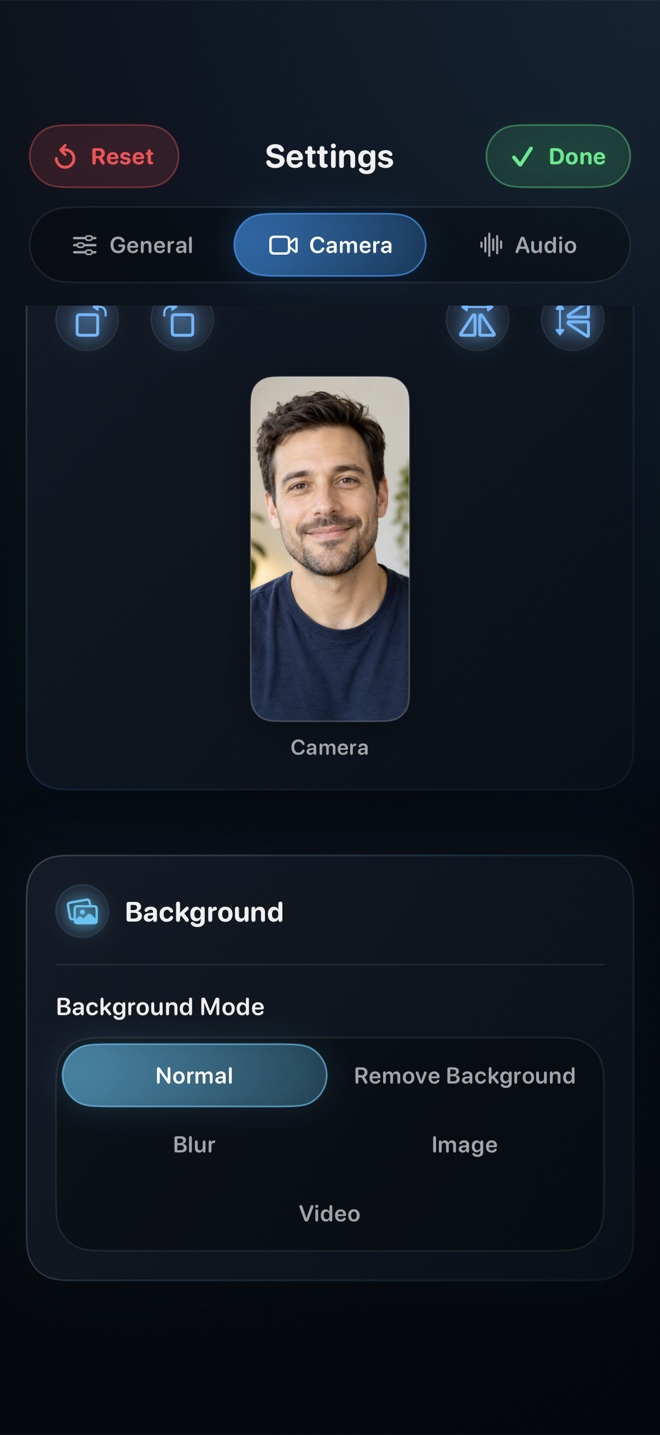
Recording Your Mac Display and Facecam Without Window Clutter
Record a clean macOS walkthrough with your face composited in frame, H.264 MP4 output, 30/60/120 fps options, and Reel's control window hidden from the capture.
Read workflow guide →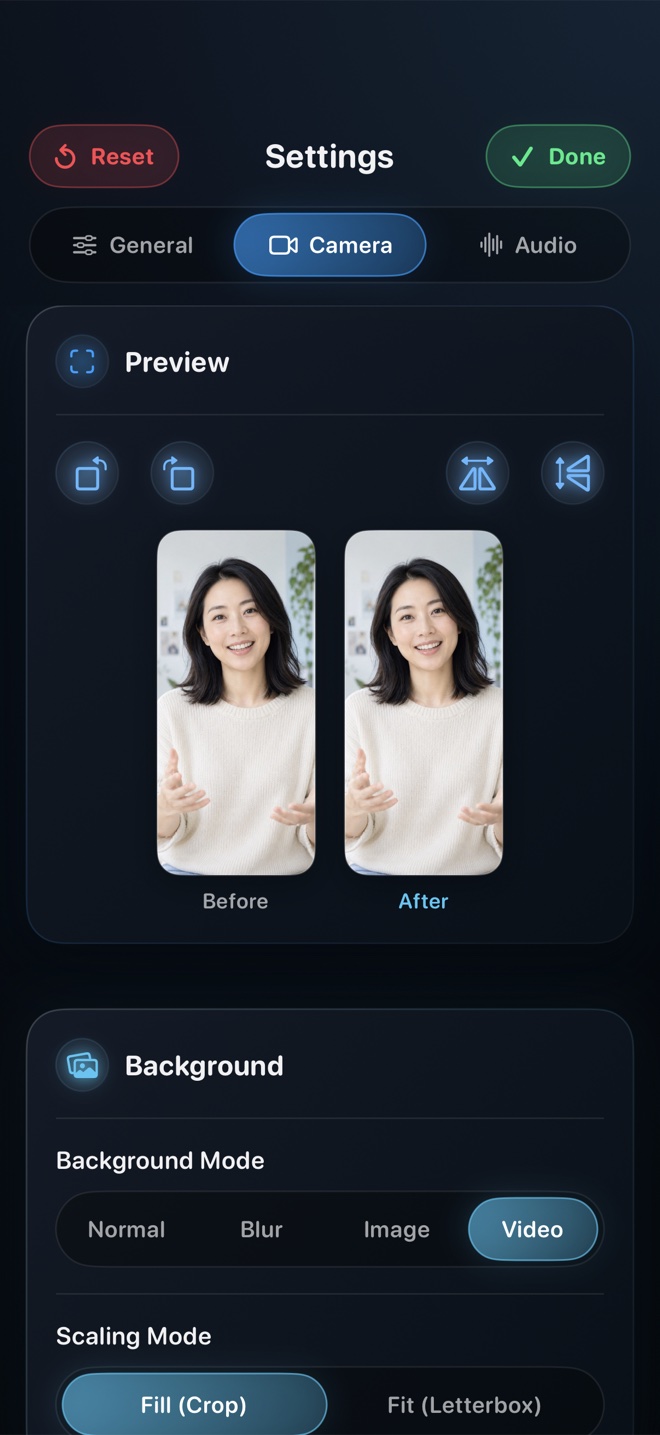
Framing a Picture-in-Picture Presenter Overlay That Never Blocks the Action
Practical layout, eye-line, lighting, and corner-choreography rules so your Picture-in-Picture facecam adds trust to screen tutorials without hiding key buttons.
Read workflow guide →