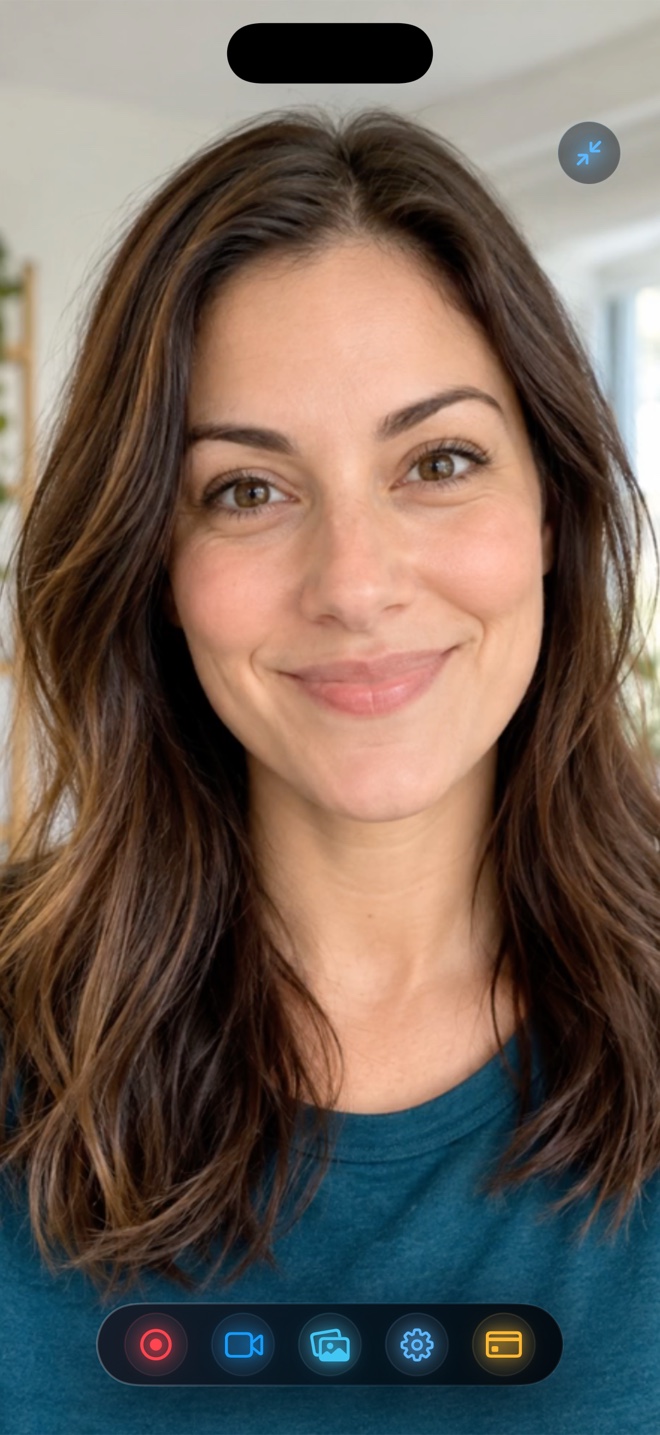
Pick CleanShot X ($29 one-time Mac app or cloud plan) if most of your day is annotated screenshots, scrolling captures, GIFs, and Mac-only quick clips with cursor/keystroke highlights. Pick ScreenFlow (~$169+ Mac NLE) when you need multi-track post-production with animated zoom callouts and cursor smoothing. Pick Reel Screen Recorder ($0 free up to 1080p; $0.99/mo or $14.99 lifetime Pro) when you need one lightweight recorder that runs natively on standalone iPhone, iPad, AND Mac with floating PiP facecam, neural background replacement, and mixed MP4 audio.
| Capability | Reel Screen Recorder | CleanShot X | ScreenFlow |
|---|---|---|---|
| Standalone iPhone & iPad recording app | Yes — full native iOS/iPadOS app with cross-app PiP facecam | No — macOS only | No — macOS only (records iOS only via wired USB cable to Mac) |
| Mac screen + webcam + system audio MP4 | Yes — display picker, hide Reel window, 30/60/120 fps, audio mixer | Yes — region/window/fullscreen MP4 or GIF with webcam & system audio | Yes — records into proprietary `.screenflow` project, then exports MP4 |
| On-device webcam background blur & media | Built-in neural blur + custom photo or video loop backdrop | Presenter camera styling & macOS system effects | Chroma key (green screen) and timeline layer compositing in editor |
| Screenshot annotation & scrolling capture | No — dedicated strictly to video + audio recording | Best-in-class — arrows, redact blur, numbered steps, scrolling capture, OCR | No — focused on video screencasting and editing |
| Multi-track timeline editor & zoom callouts | No — outputs clean single-take MP4 for direct upload or external NLE | Basic quick trim / cut tool only | Best-in-class — full multi-track timeline, animated zooms, cursor radar, captions |
| Keystroke & mouse-click visual overlays | Standard OS pointer | Built-in live keystroke HUD and click highlights during capture | Editable post-capture keystroke & radar click effects on timeline |
Three Distinct Tool Categories Under One Umbrella
Although buyers regularly compare Reel, CleanShot X, and ScreenFlow side by side, each tool occupies a different layer of the production stack. CleanShot X is first and foremost a macOS screenshot and visual-utility replacement for `Cmd+Shift+4` that happens to record crisp short videos and GIFs. ScreenFlow is a specialized non-linear video editor where capturing the screen is step one of a longer editing session.
Reel Screen Recorder focuses squarely on single-pass video + facecam + mixed-audio MP4 capture—and uniquely spans standalone iPhone, standalone iPad, and Mac under one interface and one Apple Account.
Untethered iPhone & iPad Demos vs Wired Mac Capture
Neither CleanShot X nor ScreenFlow runs on iOS or iPadOS. While ScreenFlow can ingest an iPhone screen if you plug a USB-C cable into your MacBook at a desk, you cannot film a mobile walkthrough on the couch, demonstrate outdoor AR/camera features, or float an iOS Picture-in-Picture facecam natively on the phone itself.
With Reel installed on your iPhone or iPad, you lock portrait 9:16 or landscape 16:9 framing, enable neural background blur or a studio image behind your facecam, balance app sound against your AirPods or wired mic, and save a finished MP4 straight to your device.
| Technical Dimension | Reel Screen Recorder | CleanShot X | ScreenFlow |
|---|---|---|---|
| Supported OS requirements | iOS 26, iPadOS 26, and macOS (universal App Store binary) | macOS (direct download or Setapp) | macOS (direct Telestream license) |
| Immediate output format | Direct local .mp4 (HEVC on iOS, H.264 on Mac); zero export render wait | Direct local .mp4 / .gif or optional CleanShot Cloud link | Raw multi-stream `.screenflow` bundle requiring post-edit MP4 render pass |
| Audio track options | Single-track mixed stereo default + optional two-track preservation | Mixed audio or separate track recording option in preferences | Fully discrete timeline tracks for mic, computer audio, and music beds |
| Cloud dependency | Zero cloud server — 100% local files on device | Local files by default; optional CleanShot Cloud sharing | Local project files on Mac disk |
| Frame rate & resolution support | 480p/720p/1080p free; Source Native w/ Pro; 30/60/120 fps Mac pref | Retina / scaled MP4 up to 60 fps and optimized GIFs | Custom project canvases up to 4K/Retina at 60 fps |
Instant MP4 Delivery vs Post-Recording Render Queues
ScreenFlow's biggest strength—recording lossless raw streams into a `.screenflow` project so you can zoom into menus at 200% scale later—is also its biggest speed tax when you just want to send a three-minute explanation right now. Every clip must be opened on a timeline and rendered out to MP4 before anyone else can watch it.
If you already edit complex projects in Final Cut Pro, Premiere Pro, DaVinci Resolve, or CapCut, paying $169 for a second NLE often duplicates tools you already own. Recording clean 1080p or Native Retina MP4 masters in Reel lets you publish good one-take clips immediately and drop multi-clip projects straight into your primary editor—including optional two-track audio preservation.
| Buyer Profile / Pricing | Reel Screen Recorder | CleanShot X | ScreenFlow |
|---|---|---|---|
| Entry & full unlock price (US) | $0 free (up to 1080p w/ ads); Pro $0.99/mo, $9.99/yr, or $14.99 lifetime | ~$29 one-time (1 yr updates, per Mac) or ~$8–$10/mo Cloud Pro / Setapp | ~$169 one-time base license (paid major version upgrades & stock add-ons) |
| Support rep capturing 30 annotated screenshots a day | Not designed for still screenshots | Top pick — numbered callouts and pixel-blur redaction save hours | Overkill for daily ticket replies |
| Polished paid video course with scripted zoom-ins | Good as fast source-clip recorder feeding Final Cut / Resolve | Too minimal for multi-chapter timeline editing | Top pick — post-capture cursor smoothing and callout zooms shine here |
| Creator filming mobile app walkthroughs + Mac demos | Top pick — only option working untethered on iPhone, iPad, and Mac | Cannot record on iPhone or iPad | Requires tethering iPhone to Mac at a desk |
| Zero-render one-take tutorials on a tight budget | Top pick — free 1080p MP4 immediately, or $14.99 once across all Apple devices | Great on Mac if you already pay for Setapp | Requires timeline export render pass after every recording |
Frequently Asked Questions
Does one Reel Pro purchase cover my Mac, iPhone, and iPad together?
Yes. Reel Pro ($0.99/mo, $9.99/yr, or $14.99 one-time lifetime in the US App Store) is tied to your Apple Account and unlocks ad-free Source (Native) resolution across your iPhone, iPad, and Mac.
Does Reel take still screenshots or GIFs like CleanShot X?
No. Reel is dedicated strictly to screen + camera + audio MP4 video recording. Many Mac users pair macOS screenshot shortcuts (or CleanShot) for still images with Reel for cross-device video tutorials.
Can I import Reel MP4 files into ScreenFlow, Final Cut Pro, or CapCut?
Yes. Standard HEVC (iOS) and H.264 (Mac) MP4 files open cleanly in Final Cut Pro, DaVinci Resolve, Premiere Pro, ScreenFlow, and CapCut.
Related Comparisons & Production Guide
iPhone Screen Recorders with Floating Facecam Compared (Single-Take vs Two-Pass)
Compare live Picture-in-Picture facecam recorders vs post-recording reaction apps and two-device workflows on iPhone: audio sync, background blur, and pricing.
Recording iPhone Internal App Audio + Microphone: 4 Methods Compared
Compare 4 ways to capture iPhone internal app sound and voice commentary together: Reel's audio mixer vs Control Center, USB-C Mac capture, and post-voiceover.