Pick QuickTime Player or the macOS Screenshot Toolbar (`Cmd+Shift+5`, $0 built-in) when you want to drag-select a tight screen region, highlight mouse clicks, or record silent/voice-only `.mov` clips with zero installs. Pick Reel Screen Recorder when you need Mac internal app audio mixed alongside your microphone without virtual loopback drivers, a floating webcam overlay with background blur, hidden recorder chrome, and compact H.264 `.mp4` output.
| Capability | Reel Screen Recorder (Mac) | QuickTime Player / Cmd+Shift+5 |
|---|---|---|
| Internal Mac system/app audio capture | Built-in — captures app sound + mic with independent volume sliders | No native system audio toggle (requires third-party virtual audio driver like BlackHole) |
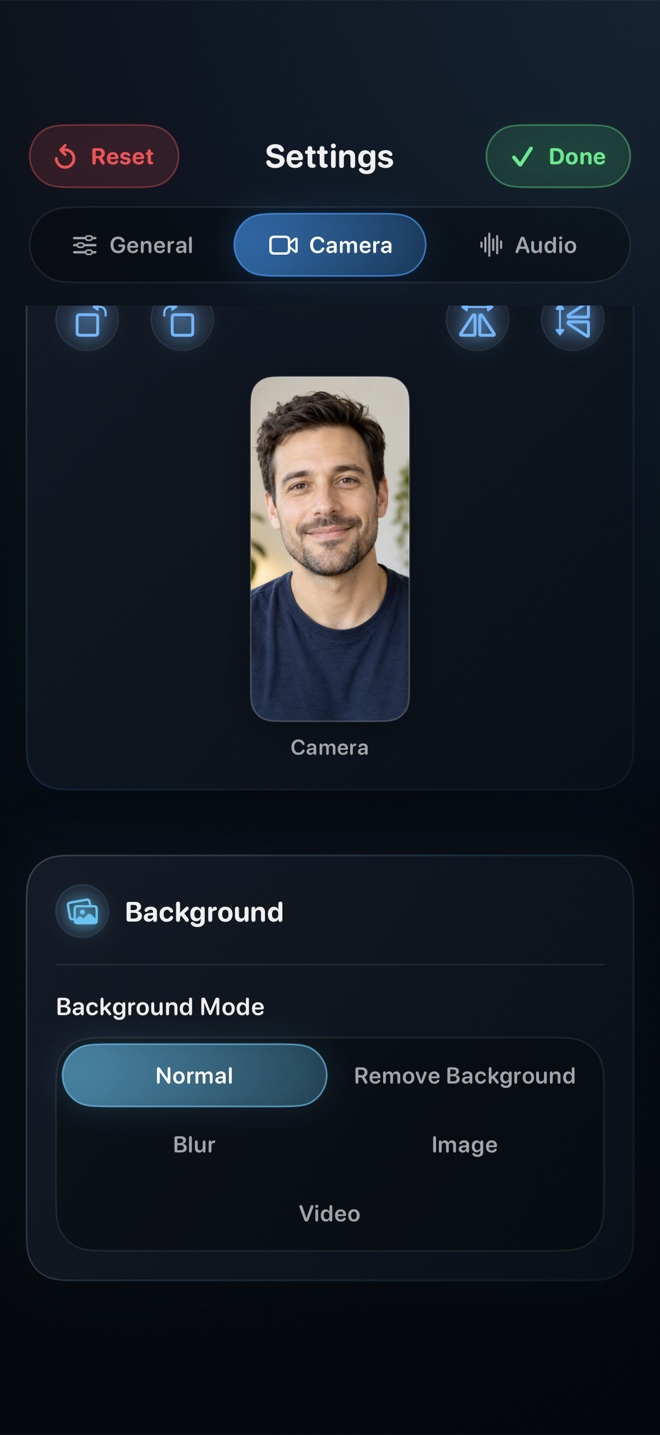
| Integrated floating webcam overlay | Built-in composited camera with neural blur or photo/video backdrop | None built-in (workaround: float a separate QuickTime 'New Movie Recording' window) |
| Custom drag-selected screen crop region | Full display capture via Mac display picker | Yes — drag crosshairs to record any rectangular sub-region of your screen |
| Mouse click ring indicator | Captures standard macOS pointer | Optional 'Show Mouse Clicks' circle toggle in Options menu |
| Output file format & web readiness | Direct H.264 .mp4 (smaller files, universally accepted on web/Slack) | High-bitrate .mov container (often large; some web forms reject .mov) |
| Frame rate preference | Explicit 30 / 60 / 120 fps preference + 480p/720p/1080p/Native tiers | Automatic system variable frame rate at full Retina pixel scale |
| iPhone & iPad standalone recording | Universal app runs natively on iPhone and iPad with PiP facecam | QuickTime on Mac can record a USB-tethered iPhone screen (no mobile PiP) |
Why QuickTime Doesn't Record Internal Mac Audio Out of the Box
When you press `Cmd+Shift+5` and open the Options menu on macOS, the Microphone list only displays physical or virtual input devices—such as 'MacBook Pro Microphone' or external USB mics. Historically, capturing what plays through your Mac's own speakers in QuickTime meant installing a virtual loopback driver like BlackHole, opening Audio MIDI Setup to build a Multi-Output Device, and losing keyboard volume keys in the process.
Modern macOS exposes internal system audio cleanly through Apple's ScreenCaptureKit APIs to dedicated recording apps. Reel Screen Recorder taps directly into that pipeline, giving you separate App Audio and Microphone volume controls out of the box—so your keyboard volume buttons keep working normally and you never touch Audio MIDI Setup.
The Floating QuickTime Camera Workaround vs Native Compositing
A classic Mac lifehack for adding a webcam to QuickTime screen recordings is opening QuickTime Player, choosing File → New Movie Recording, selecting View → Float on Top, shrinking the window into a corner, and then starting a separate `Cmd+Shift+5` screen recording over the whole desktop.
That trick works in a pinch, but hovering anywhere near the camera window reveals QuickTime's title bar and red record controls, and it offers no custom image backdrop or recorder-window exclusion. Reel composites your webcam feed cleanly with on-device background blur or custom media while keeping Reel's own control window invisible.
| Technical Dimension | Reel Screen Recorder | QuickTime / macOS Screenshot Toolbar |
|---|---|---|
| System audio architecture | Modern macOS ScreenCaptureKit audio + mic mixer (zero virtual drivers) | CoreAudio hardware input devices only (Microphone or external interface) |
| Default video container & codec | Standard MPEG-4 (.mp4) with H.264 video on macOS | QuickTime Movie (.mov) with Apple H.264 / HEVC encoding |
| Typical 10-minute Retina file footprint | Compact when capped at 1080p (free); full Retina optional in Reel Pro | Frequently hundreds of MB to multi-GB on 5K/Retina displays |
| Recorder UI visibility | 'Hide Reel Window' excludes Reel's control window automatically | Menu-bar stop icon stays minimal; floating camera workaround shows window bar on hover |
| Privacy & local storage | 100% local on your Mac; zero cloud upload or sign-in required | 100% local on your Mac (Desktop or chosen folder) |
MOV vs MP4: Eliminating the HandBrake Conversion Step
QuickTime's native `.mov` captures look crisp on Retina Macs, yet two practical snags show up when you share them: full-scale 5K/Retina `.mov` files grow enormous quickly, and non-Apple teammates on Windows, Android, or older LMS/helpdesk uploaders periodically hit playback or file-extension errors.
Reel writes universal H.264 `.mp4` files on Mac and lets you cap output cleanly at 720p or 1080p for free (or record full Source Native pixels with Reel Pro), skipping the post-capture HandBrake or `ffmpeg` transcode entirely.
| Task / Pricing Dimension | Recommended Tool | Why It Wins |
|---|---|---|
| Price | QuickTime ($0 built-in) vs Reel ($0 up to 1080p; Pro $0.99/mo or $14.99 lifetime) | Both let you record 1080p+ locally for $0; Reel Pro removes ads and unlocks Source Native |
| Cropping a 400×300 px UI animation for a GitHub issue | macOS Screenshot Toolbar (Cmd+Shift+5) | Region-drag selection records just that widget without cropping in post |
| Software demo playing browser video, synth audio, or UI sound + voice | Reel Screen Recorder | Records internal Mac audio and mic simultaneously with zero BlackHole multi-output setup |
| Presenter-led lesson or founder update video | Reel Screen Recorder | Composites a clean blurred webcam overlay directly into an H.264 MP4 |
| Tethered clean-status-bar iPhone capture at a desk | QuickTime Player ('New Movie Recording' → select USB iPhone) | Apple's wired QuickTime feed overrides the iPhone clock to 9:41 with full battery bars |
Frequently Asked Questions
Does Reel install a permanent virtual audio driver in macOS Sound settings?
No. Reel captures Mac system audio using Apple's native macOS capture APIs, so it never clutters your System Settings → Sound output list or breaks your hardware volume keys.
When should I still use Cmd+Shift+5 instead of Reel?
Use `Cmd+Shift+5` whenever you want to drag a tight custom rectangle around a single button or terminal pane for a silent 5-second visual clip.
Can I use my iPhone as a Continuity Camera webcam inside Reel on Mac?
Yes. Because Continuity Camera registers your nearby iPhone as a standard macOS video input device, you can select it as your camera source on Mac for crisp optical quality.
Related Comparisons & Production Guide
Reel vs CleanShot X vs ScreenFlow: Choosing the Right Mac Tutorial Tool
Compare Reel Screen Recorder, CleanShot X, and ScreenFlow: standalone iPhone/iPad + Mac capture vs screenshot annotation suites and full timeline editors.
iPhone Screen Recorders with Floating Facecam Compared (Single-Take vs Two-Pass)
Compare live Picture-in-Picture facecam recorders vs post-recording reaction apps and two-device workflows on iPhone: audio sync, background blur, and pricing.