| Recording Goal | App Sound | Microphone | Recommended Setup in Reel |
|---|---|---|---|
| App tutorial with spoken narration | On (reduced 30–40%) | On | Single-track mix enabled; test 5-second speech over active UI sound |
| Silent UI walkthrough for captions | On or Muted | Muted | Mute mic in Reel Audio tab so room noise never enters the file |
| Gameplay commentary with loud effects | On (reduced 50%+) | On (headset mic) | Lower game SFX in the game's own settings first, then balance in Reel |
| Post-production in multi-track NLE | On | On | Disable single-track mix only after confirming your editor reads multi-track MP4 |
Why iOS Splits App Sound and Microphone Input
When you record across apps on an iPhone or iPad, Apple's ReplayKit Broadcast Extension delivers two distinct audio feeds to the recorder: system application audio coming from the active app, and microphone audio captured from the built-in mic or connected headphones.
Because iOS hands those streams over at full digital scale, any app with background music, UI chimes, or video playback will naturally sit right on top of human speech. Fixing that balance after the fact is impossible if both streams were baked together at equal volume.
Step-by-Step Setup Before You Leave the Recorder
Treat audio preparation as a thirty-second pre-flight before switching into the app you plan to demonstrate:
- Open Reel Screen Recorder on iPhone or iPad and switch to the Audio tab to set independent levels or mute states for Microphone and App Audio.
- Check Settings → General → Recording Options: leave the single-track mix toggle on (the default) if you plan to upload straight to YouTube, Reels, Slack, or QuickTime.
- Put on wired earbuds or AirPods whenever the target app plays continuous sound; otherwise your iPhone speakers bleed back into the microphone and create a hollow slapback echo.
- Open the broadcast picker, confirm Reel is selected, verify the system Microphone button is active, and wait for the three-second countdown to finish before speaking your first word.
Single-Track Mix vs Multi-Track Movie Files
By default, Reel mixes your spoken narration and system audio into a single stereo track inside an HEVC MP4 container so every browser, messaging app, and mobile social uploader plays both immediately.
If you turn off single-track mixing—or if a post-recording mix pass falls back to the raw capture—the resulting movie preserves separate tracks. Desktop timelines like Final Cut Pro and DaVinci Resolve can inspect separate tracks, whereas many web players only play Track 1. Always verify with a ten-second test clip when changing track settings.
Apps That Intentionally Block Internal Audio
Even with every toggle set properly, iOS enforces Digital Rights Management and call-privacy rules at the OS level. Subscription video streamers, DRM-protected music playback, and active cellular or VoIP calls can mute the system audio feed during capture. When an app withholds its audio stream from ReplayKit, record silent visuals or capture external acoustic audio only where you have the right to do so.
Pre-Recording Checklist
Tick items before you start your broadcast—saved locally in your browser.
Common Questions
Does turning on the iPhone physical Silent Mode switch mute internal app recording?
In many UIKit and games apps, flipping the hardware Ring/Silent switch silences sound effects before they reach ReplayKit. Keep Silent Mode off (and turn on Do Not Disturb / Focus instead) when you want clean app audio without notification dings.
Why can I hear app sound on my phone but not my voice in the saved video?
iOS remembers the system-level Broadcast Microphone button separately from in-app settings. Long-press Screen Recording in Control Center or check Reel's broadcast sheet and make sure Microphone On is highlighted.
Next Workflows to Read
How to Keep a Floating Facecam Visible While Switching iPhone Apps
Learn how to keep your live camera bubble on screen while recording other apps on iPhone and iPad using Picture-in-Picture alongside iOS screen broadcast.
Read workflow guide →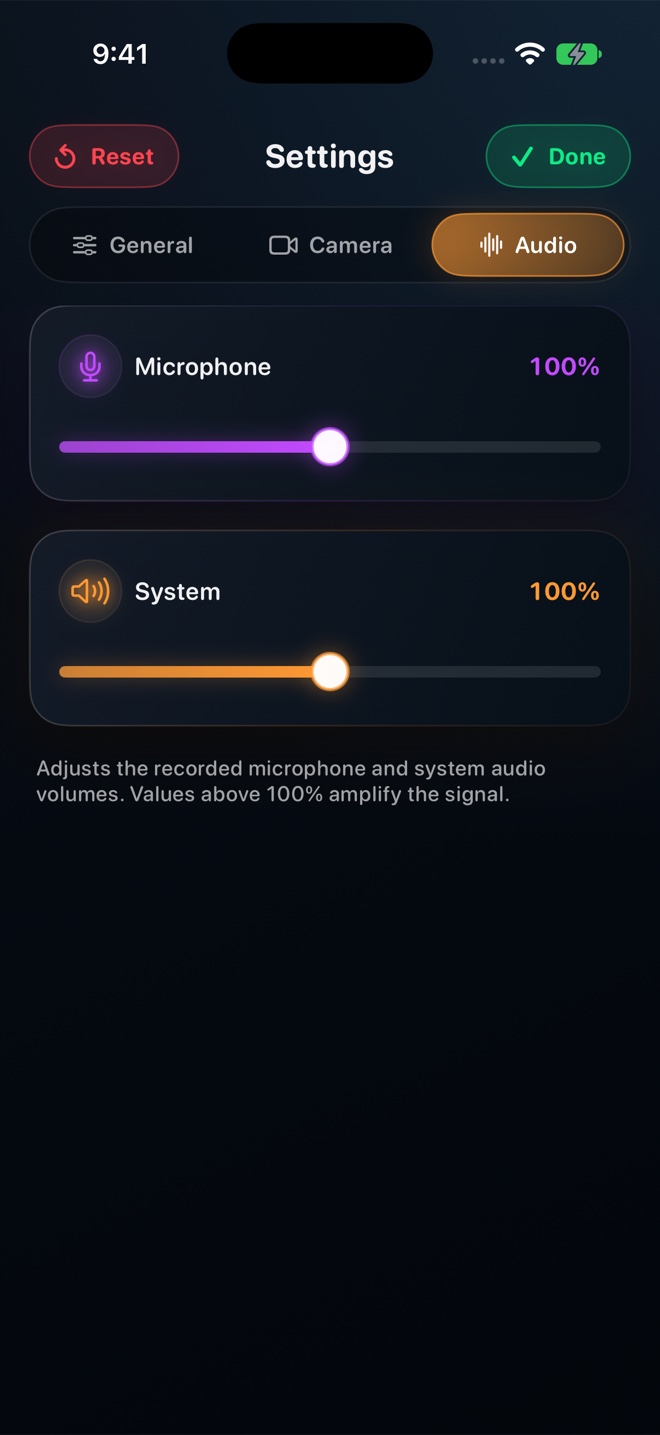
iPhone Screen Recording Has No Sound? 7 Causes and Fast Fixes
Diagnose silent screen recordings on iPhone and iPad in under two minutes: broadcast mic state, hardware mute switch, audio session conflicts, DRM, and track settings.
Read workflow guide →