| Destination | Facecam Overlay? | Recommended Quality | Target Length |
|---|---|---|---|
| Landing page hero / founder launch post | Yes (builds immediate human trust) | 1080p or Source (Native) | 35–60 seconds |
| Customer support / async bug answer | Optional (voice + screen is fast) | 720p or 1080p MP4 | 20–90 seconds |
| Apple App Store Preview submission | No (Apple requires pure in-app footage) | Source (Native) in Pro, then conform in NLE | 15–30 seconds |
Stage Sample Data Before Hitting Record
Empty states make terrible demos, and real customer accounts leak private emails. Before recording, populate your app with realistic sample items—three clear projects, a readable chart, or a half-finished document ready for the final click.
Turn on Focus / Do Not Disturb, plug in power or verify healthy battery charge, and close unrelated tabs so nothing competes with your interface.
The Three-Beat Tap and Cursor Cadence
Because you built or know the app, your thumb already knows where the next button lives before the screen finishes animating. Your viewer's eyes do not.
Adopt a calm three-beat rhythm: name what you are about to do ('Tap Export in the top right'), pause half a second as you tap it, and let the result sit on screen for one full breath before moving on.
Social Launch Demos vs Strict App Store Previews
For X/Twitter launches, Product Hunt, YouTube, and onboarding docs, keeping your facecam in the corner dramatically boosts completion rates because viewers connect with the builder.
When capturing footage specifically for Apple's App Store Connect App Preview slot, turn the camera overlay off (Apple guidelines require pure app screen capture without presenter overlays), record at Source (Native) resolution, and verify exact pixel specs in Final Cut or QuickTime before uploading.
Pre-Recording Checklist
Tick items before you start your broadcast—saved locally in your browser.
Common Questions
Can I upload a Reel MP4 straight into App Store Connect as an App Preview?
Apple enforces strict per-device pixel dimensions, frame rates, and stereo audio channel rules in App Store Connect. Record screen-only at Source (Native) quality as your clean master, then conform to Apple's exact App Preview preset in Final Cut Pro or iMovie.
How do I avoid saying 'um' and losing my place mid-demo?
Write three bullet outcomes on a sticky note right beside your camera lens—never a word-for-word script. Speaking to three short milestones keeps your voice natural while preventing detours.
Next Workflows to Read
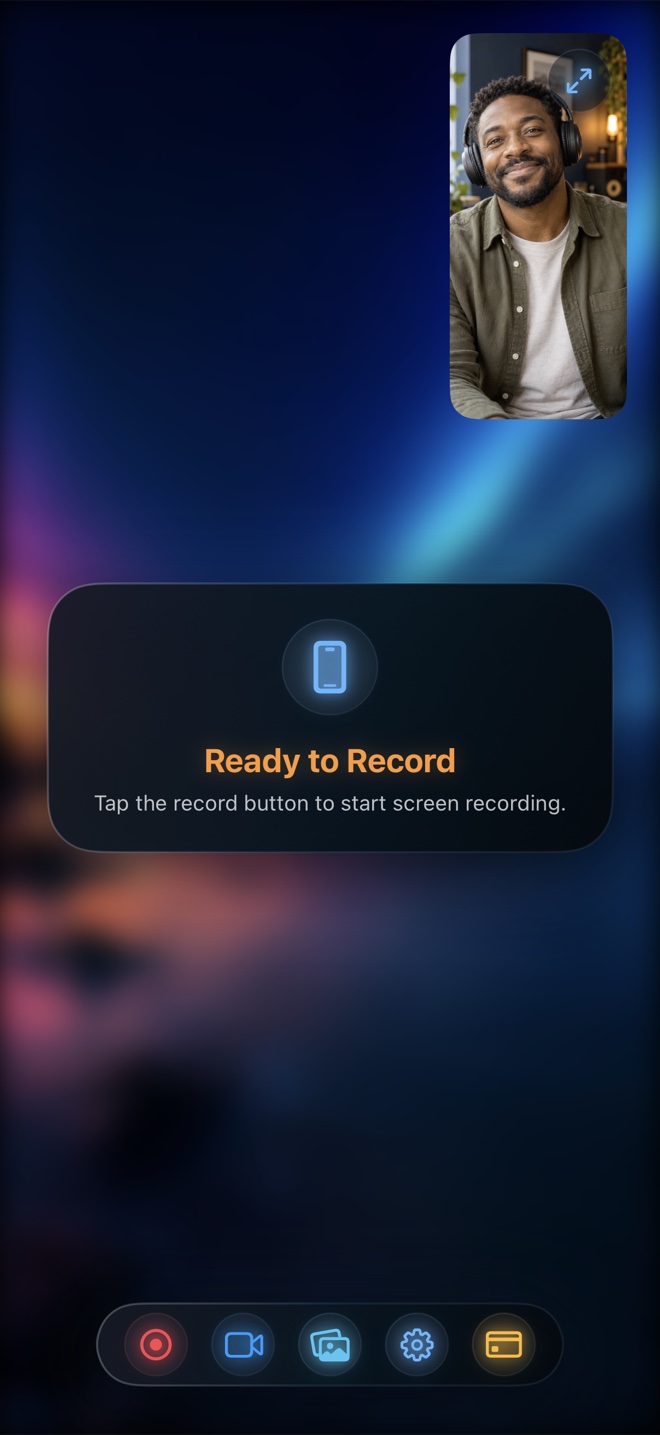
How to Record iPhone Screen with Both App Sound and Your Voice
Capture crisp in-app sound alongside spoken narration on iPhone and iPad. Learn how iOS broadcast audio routing works, how to balance levels, and how to export a clean MP4.
Read workflow guide →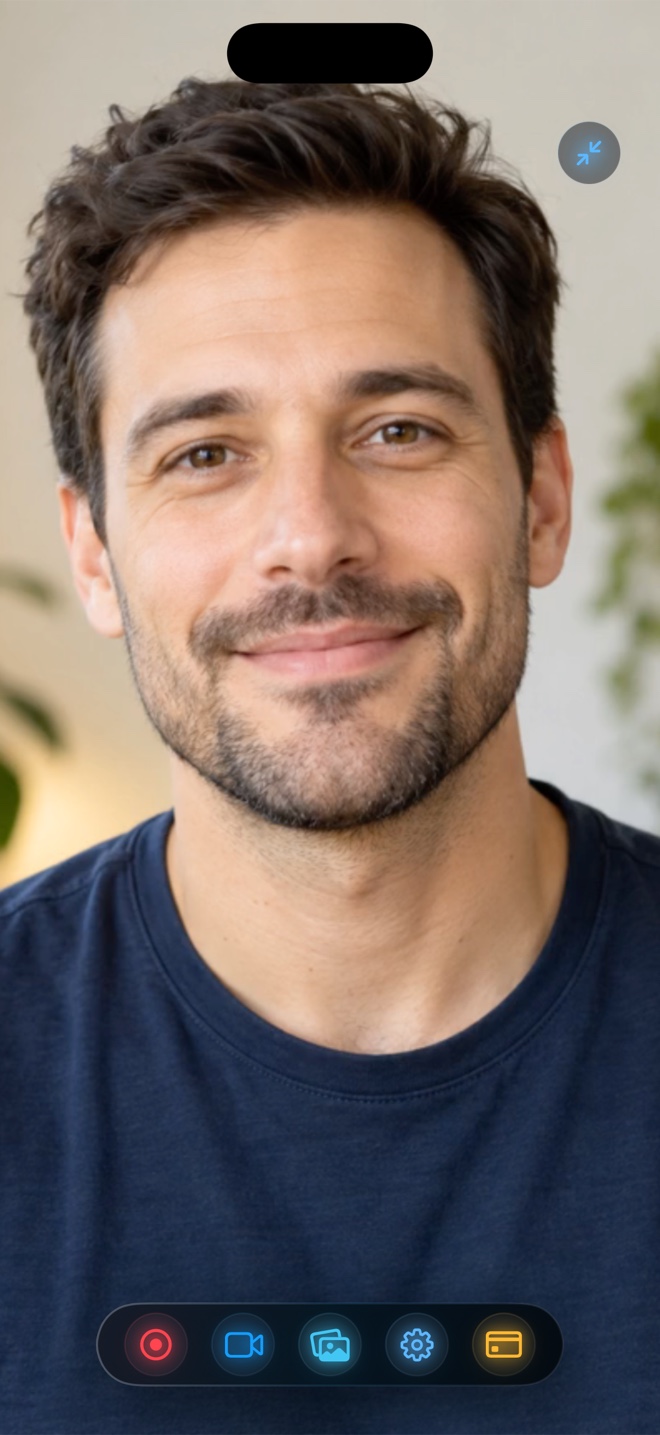
How to Keep a Floating Facecam Visible While Switching iPhone Apps
Learn how to keep your live camera bubble on screen while recording other apps on iPhone and iPad using Picture-in-Picture alongside iOS screen broadcast.
Read workflow guide →