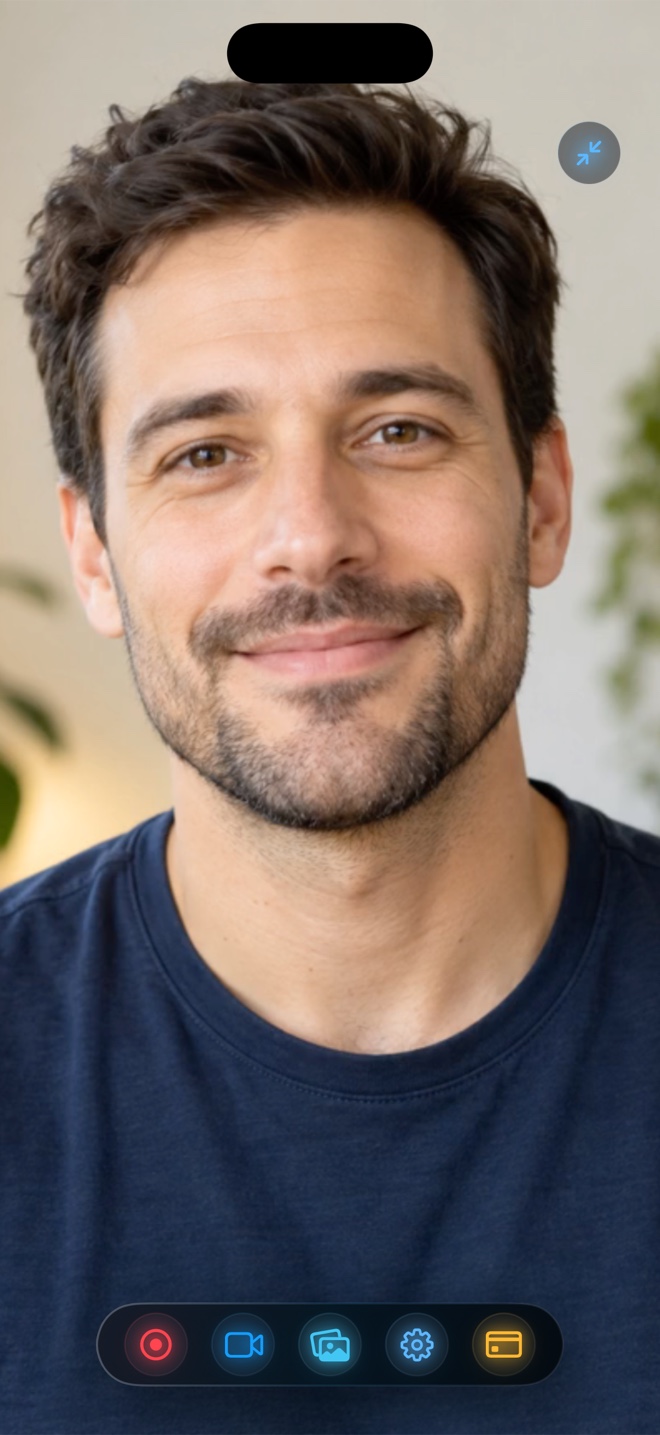
Pick the iOS Built-In Screen Recorder for instant, zero-install silent bug captures or quick screen clips where you do not need your face on screen or audio level balancing. Pick Reel Screen Recorder when you need a floating Picture-in-Picture facecam over third-party apps, independent app-audio and microphone volume sliders, on-device background blur, and explicit 480p/720p/1080p (free) or Native Retina (Reel Pro, $0.99/mo or $14.99 lifetime) MP4 exports.
| Capability | Reel Screen Recorder (v1.3.5) | iOS Built-In Screen Recorder |
|---|---|---|
| Floating facecam over third-party apps | Yes — live Picture-in-Picture camera overlay stays visible across apps | No — opening another app hides the stock Camera app preview |
| Independent app audio & mic level mixer | Yes — separate mute and gain controls before starting capture | No — Microphone is a binary On/Off toggle at full system volume |
| Camera background blur & custom backdrops | Yes — on-device neural blur plus photo or video loop replacement | Not applicable (no integrated camera overlay) |
| Resolution tier selection | 480p, 720p, 1080p (free) or Source Native Retina (Reel Pro) | Always records full native screen dimensions (no size cap toggle) |
| Portrait vs landscape orientation lock | Explicit Portrait or Landscape lock set prior to frame one | Follows active app rotation (can flip mid-recording if unlocked) |
| Launch speed from lock/home screen | Open Reel first to stage camera, audio mix, and broadcast sheet | Fastest — single swipe into Control Center with 3-second countdown |
| Cross-platform Mac companion | Included in universal App Store app (iPhone, iPad, and Mac) | Separate macOS Screenshot Toolbar / QuickTime workflow |
Where Apple's Control Center Recorder Wins—and Where It Stops
Apple's built-in iOS screen recorder is engineered as a frictionless system utility. Because it lives directly inside Control Center, you can pull down from the top-right corner inside almost any app, tap Record, and save a sharp clip straight to Photos with zero installation and zero advertisements. For silent bug reproduction videos or sharing a quick map route with a friend, nothing beats that immediacy.
The limitation appears the moment you want presenter presence or audio control. iOS suspends standard camera apps as soon as they leave the foreground, so opening the stock Camera app and swiping to another app freezes your video feed. Likewise, the Control Center Microphone toggle is strictly binary: when enabled, iOS captures full-scale in-app audio alongside raw microphone input with no mixer between them.
How Reel Adds a Cross-App Facecam on a Single iPhone
Reel Screen Recorder pairs an Apple ReplayKit Broadcast Upload Extension with a live Picture-in-Picture (PiP) camera window. Because iOS renders active PiP overlays above third-party apps, your live front or rear camera bubble stays visible while you swipe across the Home Screen, demonstrate Safari web apps, or walk through mobile workflows—and gets recorded directly into the output frame.
Before starting the broadcast, Reel also runs real-time neural person segmentation locally on the Apple Neural Engine. You can blur a cluttered bedroom or replace your background with a clean studio photo or subtle looping video without hanging a physical green screen behind your desk.
| Technical Dimension | Reel Screen Recorder | iOS Built-In Screen Recorder |
|---|---|---|
| Underlying capture API | Apple ReplayKit Broadcast Extension + AVPictureInPictureController | System-level ReplayKit Control Center capture |
| Video container & codec (iOS/iPadOS) | Standard .mp4 container with hardware HEVC encoding | Camera Roll .mp4 / QuickTime-compatible HEVC or H.264 movie |
| Audio track layout | Single-track stereo mix default (universal web playback) + optional two-track | System-mixed output saved directly to Photos library |
| DRM & protected call behavior | Follows iOS ReplayKit rules (DRM video and protected calls mute/blank) | Same OS-enforced DRM black-screen and call-audio restrictions |
| Account, cloud & storage footprint | 100% local on-device storage; no account; no Arte Soft cloud server | 100% local to Apple Photos (syncs to iCloud Photos if enabled by user) |
Solving the Loud-App-vs-Quiet-Voice Problem Before You Record
Anyone who has narrated a mobile game or media-rich app with Control Center knows how easily soundtracks bury speech. Once two audio sources are baked together at equal digital gain, no mobile video editor can cleanly separate a UI chime that lands on top of a spoken consonant.
Inside Reel's Audio tab, you set independent levels or mute states for App Audio and Microphone before initiating the broadcast. By default, Reel writes a single stereo track inside a standard HEVC MP4 so Slack, YouTube, Instagram Reels, and web browsers play both streams reliably—while editors working in Final Cut Pro or DaVinci Resolve can optionally preserve separate audio tracks.
| Scenario / Pricing Dimension | Recommended Tool | Why It Fits Best |
|---|---|---|
| Price & monetization | iOS Built-In ($0, no ads) vs Reel ($0 w/ ads; Pro $0.99/mo, $9.99/yr, $14.99 lifetime) | Control Center is pre-installed; Reel keeps 480p–1080p free and offers a $14.99 lifetime Pro unlock |
| 5-second QA bug report with no voice | iOS Built-In Screen Recorder | Swiping down Control Center captures a quick visual repro in three seconds |
| App walkthrough or SaaS mobile demo | Reel Screen Recorder | Viewers see your facial expressions via PiP while hearing balanced UI sound and speech |
| Mobile gameplay commentary | Reel Screen Recorder | Lets you lower game audio relative to headset mic speech and lock landscape framing |
| Long lecture or multi-minute upload on cellular | Reel Screen Recorder (720p or 1080p) | Capping short-side resolution avoids multi-gigabyte full-Retina uploads when 1080p suffices |
File Size Control: Native Retina Pixels vs 1080p MP4
Modern Pro-class iPhones and iPads push well past 1080p on their physical displays. Recording twenty minutes at full native Retina resolution in Control Center produces heavy files when your destination—TikTok, Reels, Discord, or an LMS upload portal—will immediately downscale to 1080p anyway.
Reel includes 480p, 720p, and 1080p aspect-preserving exports free of charge, keeping file sizes predictable while preserving exact device proportions. When you are cutting 4K desktop zoom-ins or Apple App Store Preview masters that genuinely require every physical Retina pixel, Reel Pro unlocks Source (Native) resolution across iPhone, iPad, and Mac.
Frequently Asked Questions
Can Reel record DRM-protected streaming apps that go black in the iOS built-in recorder?
No. Both Reel Screen Recorder and Apple's Control Center recorder use Apple's ReplayKit framework, which enforces operating-system DRM protection on subscription video apps and protected call audio.
Do I need to pay for Reel Pro just to record 1080p with facecam and audio mixing?
No. Recording at 480p, 720p, and 1080p—including the floating Picture-in-Picture facecam, audio mixer, and on-device background blur or custom backdrops—is free with ad support. Reel Pro ($0.99/mo, $9.99/yr, or $14.99 lifetime) removes ads and unlocks Source (Native) resolution.
Should I delete/remove the Control Center button if I install Reel?
Keep both. Long-pressing the Control Center Screen Recording button actually lets you select Reel's broadcast extension directly from Control Center once you have staged your camera and audio settings in Reel.
Related Comparisons & Production Guide
Reel Screen Recorder vs Loom: Local MP4 Capture vs Cloud Video Links
Reel Screen Recorder vs Loom on iPhone, iPad, and Mac: compare direct on-device MP4 files and one-time Pro pricing against cloud links and per-seat team plans.
Reel Screen Recorder vs OBS Studio on Mac: Fast MP4 vs Live Broadcast Studio
Compare Reel Screen Recorder vs OBS Studio on Mac: fast single-pass MP4 capture with neural webcam blur versus multi-scene live streaming and broadcast rigs.