| Background Mode | Visual Effect | Works in Cross-App PiP? | Best Lighting Condition |
|---|---|---|---|
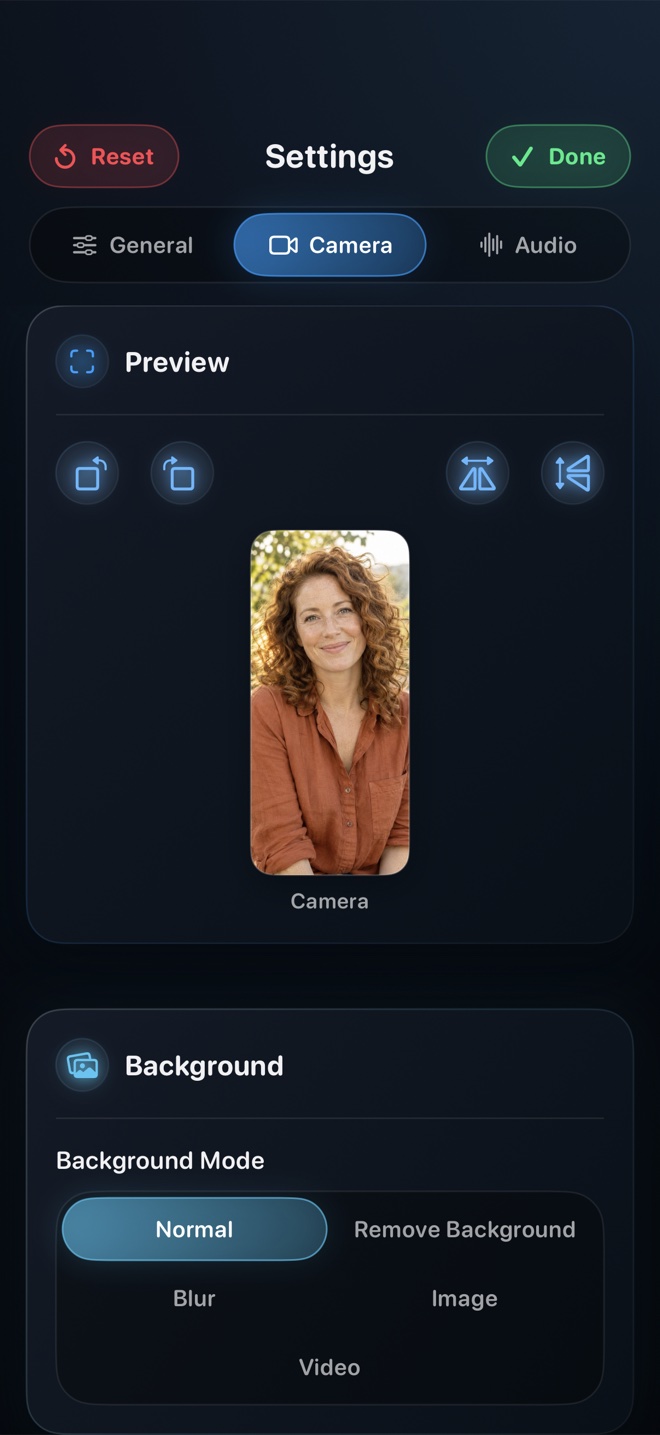
| Natural (Off) | Unprocessed camera feed | Yes | Clean wall or tidy workspace |
| Portrait Blur | Softens room detail behind shoulders | Yes | Even front light; hides clutter naturally |
| Custom Image / Video | Replaces room with imported photo or loop | Yes | Clear contrast between shirt/hair and wall |
| Transparent Cutout | Removes backdrop around speaker inside Reel | In-app view (PiP uses opaque frame) | Strong front key light, minimal fast hand waving |
How On-Device Person Segmentation Treats Edges
Reel runs real-time person segmentation directly on Apple Silicon neural hardware rather than uploading your camera feed to a server. Every video frame separates your head, shoulders, and torso mask from the room behind you.
Segmentation accuracy depends heavily on edge contrast. If you wear a dark hoodie in front of an unlit dark bookshelf—or sit directly in front of a bright sunlit window—the neural mask has to guess where your shoulder ends. Turning on a small desk lamp in front of you sharpens that boundary immediately.
Why PiP Uses Blur or Backdrops Instead of Transparent Alpha
Inside Reel's own studio view, segmentation supports background removal as well as blur, custom images, and video loops. When you float your camera over third-party iOS apps via Apple's system Picture-in-Picture window, iOS renders PiP inside a rectangular video layer that does not carry transparent alpha cutouts.
For cross-app tutorials, Reel therefore disables transparent mode in PiP settings while keeping blur and custom image backdrops available—giving you a clean, distraction-free rectangular presenter card over any app.
Picking Backdrops That Support Your Screen Content
Avoid busy motion loops or neon colors behind your face when demonstrating detailed spreadsheets, code, or UI settings. A subtle warm blur or muted neutral gradient keeps viewer attention on your eyes and the screen action.
Pre-Recording Checklist
Tick items before you start your broadcast—saved locally in your browser.
Common Questions
Are my imported background photos uploaded anywhere?
No. Imported camera backgrounds and person segmentation stay locally on your iPhone, iPad, or Mac.
Why do my fingertips flicker when I gesture wide with a custom background?
Fast motion blur stretches fingers outside the person mask for a frame or two. Keep gestures closer to chest height or switch to soft Portrait Blur, where minor mask transitions are invisible.
Next Workflows to Read
Locking Portrait or Landscape Orientation for Reels, Shorts, and App Walkthroughs
Prevent sideways videos and black pillarbox bars when recording vertical Reels/Shorts or widescreen landscape games on iPhone and iPad.
Read workflow guide →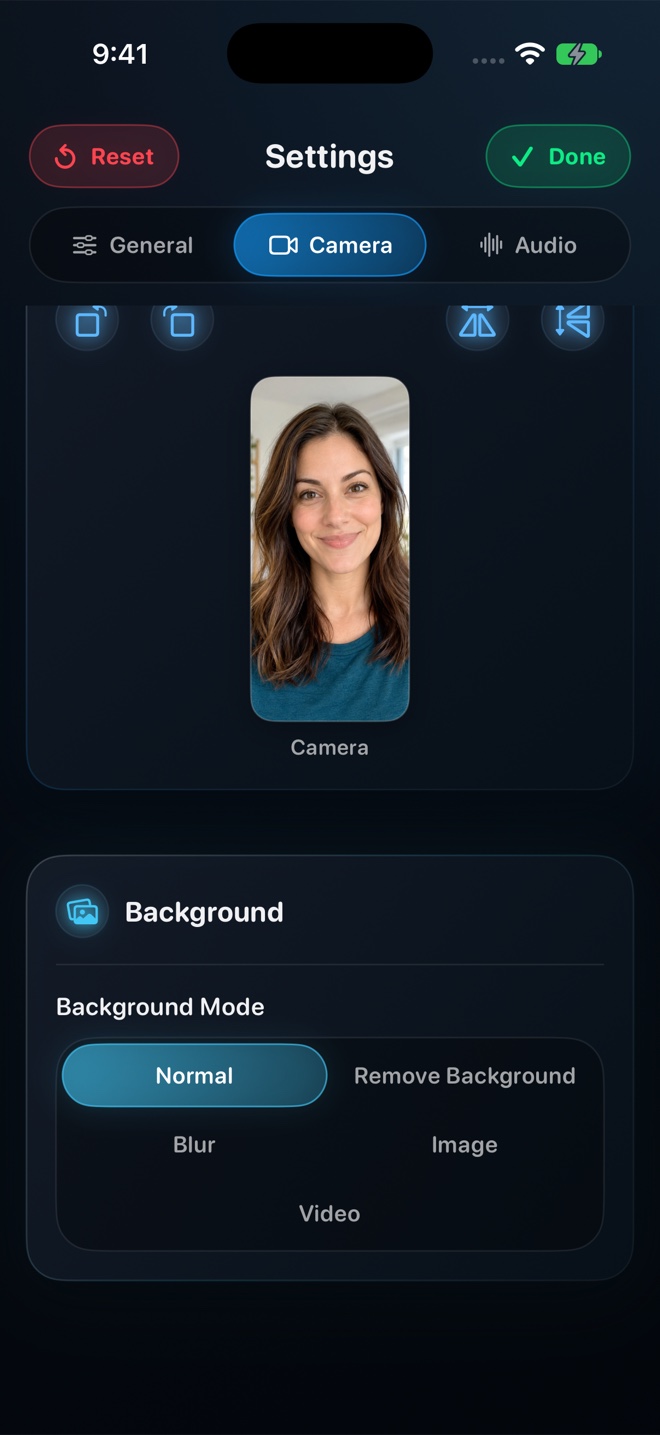
720p, 1080p, or Source Native Quality: Picking Resolution Without Huge Files
Understand how Reel's 480p, 720p, 1080p, and Pro Source (Native) quality tiers size your video, preserve aspect ratio, and export compact HEVC/H.264 MP4 files.
Read workflow guide →