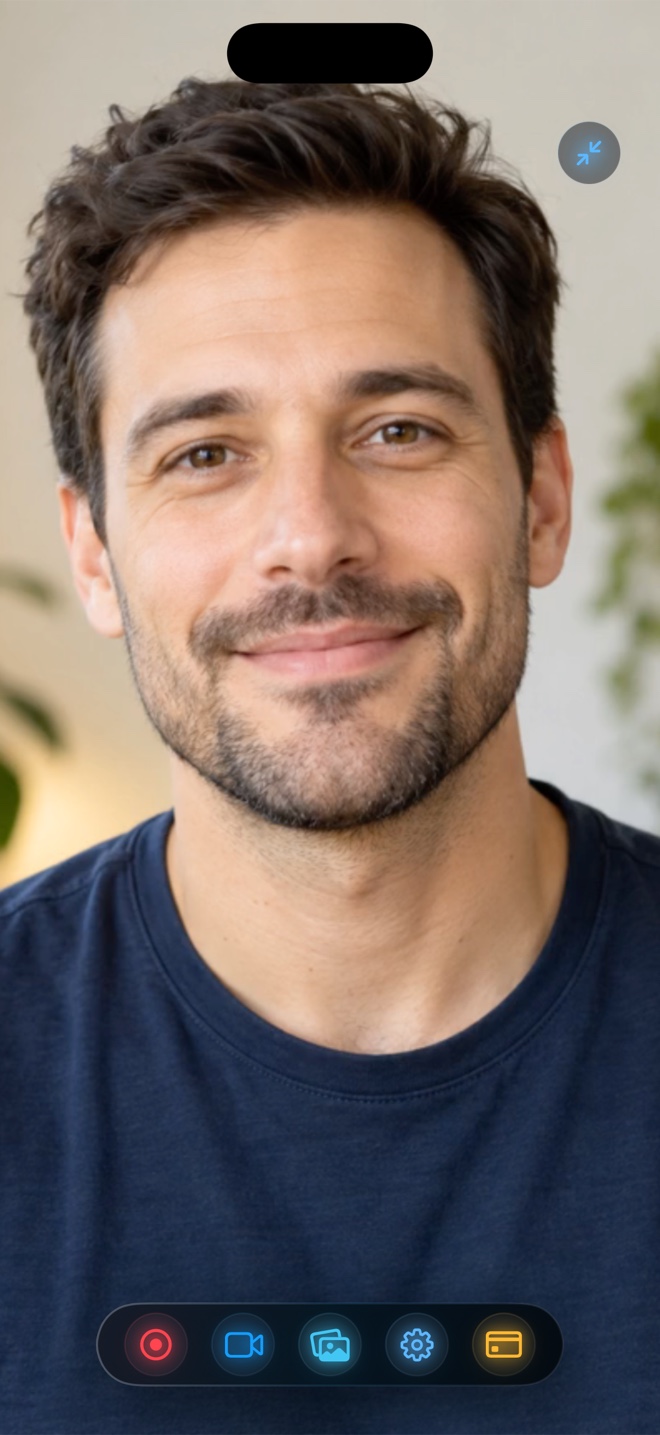
Pick TechSmith Camtasia (~$180–$299/yr on Mac/Windows) when you build interactive corporate L&D modules requiring SCORM quizzes, cursor-path editing, and multi-track callout timelines. Pick Reel Screen Recorder ($0 free up to 1080p; $0.99/mo or $14.99 lifetime Pro) when you want standalone single-take MP4 capture *with* a live Picture-in-Picture facecam, neural background blur, and balanced audio across iPhone, iPad, and Mac.
| Capability | Reel Screen Recorder | TechSmith Capture (iOS) | TechSmith Camtasia (Desktop) |
|---|---|---|---|
| Standalone iOS screen + live PiP facecam | Yes — records screen + floating facecam in one MP4 | No facecam — captures iOS screen + mic only | Desktop only (imports mobile clips over Wi-Fi) |
| On-device camera background blur / media | Yes — neural blur & custom image/video backdrops | No camera support | Green screen (Chroma Key) & background removal in editor |
| Independent iOS app audio + mic mixer | Yes — separate gain/mute sliders on iPhone, iPad & Mac | Basic ReplayKit audio capture | Multi-track desktop timeline mixer |
| Interactive quizzes, SCORM & cursor smoothing | No — single-pass MP4 capture tool | No — companion transfer utility | Yes — flagship strength for corporate LMS |
| Immediate MP4 without desktop export render | Yes — instant HEVC/H.264 MP4 on stop | Saves locally or pushes to Camtasia/Screencast | Requires `.tscproj` timeline render pass |
| Supported platforms | iPhone, iPad, and Mac | iOS / iPadOS | macOS and Windows |
Why TechSmith Capture on iPhone Is Only Half a Workflow
TechSmith Capture is a clean, free iOS utility designed to send iPhone screen recordings over Wi-Fi into a desktop copy of Camtasia. Because it assumes you will do all compositing on a computer later, it omits cross-app Picture-in-Picture facecam, neural background blur, and independent live audio mixing on the phone itself.
If you want to finish a polished mobile tutorial directly on your iPhone or iPad—without booting a laptop, transferring files, filming a separate talking-head track, and rendering a timeline—Reel completes the entire job in one take.
When You Truly Need Camtasia vs When One-Take MP4 Wins
Camtasia justifies its annual price when an instructional designer spends four hours crafting a ten-minute corporate certification video with animated callout arrows, cursor magnification, and embedded multiple-choice quizzes.
For the other 90% of knowledge sharing—university homework walkthroughs, release-note demos, customer onboarding answers, and daily social tutorials—shipping a crisp, authentic one-take MP4 today beats leaving three `.tscproj` timelines half-edited till Friday.
| Technical Dimension | Reel Screen Recorder | TechSmith Capture + Camtasia |
|---|---|---|
| Steps to create a mobile demo with facecam | 1 step on iPhone/iPad (stop broadcast → MP4 done) | Capture screen on iOS → film webcam separately → Wi-Fi transfer → sync & render on desktop |
| Output format | Standard `.mp4` (HEVC on iOS, H.264 on Mac) | MP4 export after desktop project render (or SCORM package) |
| Mac frame rates | 30 / 60 / 120 fps preference + `⌘R` shortcut | Up to 60 fps timeline editing |
| Account requirement | None — zero login | TechSmith account required for cloud/trial activation |
| Storage model | 100% local on your Apple device | Local desktop projects + optional Screencast cloud |
Using Reel as a Source Recorder for Desktop NLEs
Even if you edit final masters in Camtasia, Final Cut Pro, or Premiere, Reel Pro's Source (Native) resolution and optional two-track audio mode make it an ideal field recorder whenever you are away from your desk.
| Profile / Budget | Best Choice | Why |
|---|---|---|
| Annual cost | Reel ($0 free 1080p; $14.99 lifetime Pro) vs Camtasia (~$180+/yr) | Reel costs $0–$14.99 total versus recurring enterprise software budgets |
| Corporate L&D specialist building SCORM compliance quizzes | Camtasia | Interactive hotspots and SCORM LMS reporting require an authoring suite |
| University lecturer, YouTuber, or SaaS founder filming tutorials | Reel Screen Recorder | Delivers personable screen + facecam MP4s in real time with zero render queue |
| Camtasia user needing better iPhone source clips | Record mobile clip in Reel → Import MP4 to Camtasia | Reel adds live mobile PiP facecam or two-track audio that TechSmith Capture lacks |
Frequently Asked Questions
Can I import Reel MP4 recordings directly into Camtasia on Mac or Windows?
Yes. Mac H.264 MP4s and iOS HEVC MP4s import straight into modern Camtasia timelines.
Does TechSmith Capture record a floating facecam on iPhone?
No—TechSmith Capture records screen and audio only, leaving webcam overlays to desktop Camtasia.
Does Reel have ads on Mac?
No! Even on the free tier, Reel on macOS has zero advertisements; Pro unlocks Source (Native) resolution on Mac and removes ads on iPhone/iPad.
Related Comparisons & Production Guide
Reel Screen Recorder vs VRecorder & Vidma on iPhone
Compare Reel Screen Recorder vs VRecorder and Vidma on iPhone: clean studio MP4 capture with live PiP facecam, zero watermark, and no weekly VIP paywalls.
Reel Screen Recorder vs Wired QuickTime iPhone Recording on Mac
Compare plugging your iPhone into a Mac with QuickTime Player over USB-C vs recording directly on iPhone with Reel Screen Recorder: 9:41 status bar vs live PiP.