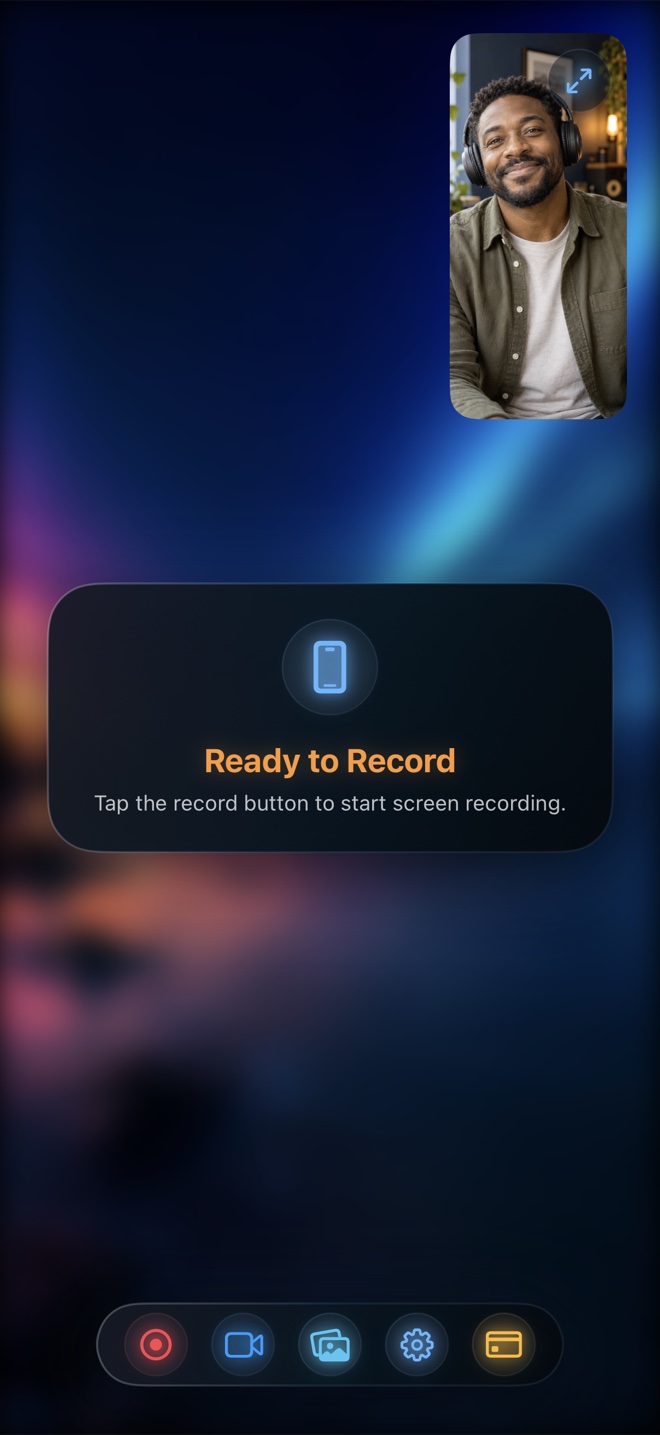
Buy an Elgato capture card + OBS on a Mac/PC ($150–$250+ hardware) if you livestream multi-hour mobile esports to Twitch/YouTube from a fixed desk, also capture Nintendo Switch/PS5 consoles, or need zero encoding heat on your phone. Pick Reel Screen Recorder ($0 free 1080p MP4, $14.99 lifetime Pro) if you want to record anywhere in 10 seconds with zero cables—capturing crisp internal app audio, live microphone commentary, and a floating Picture-in-Picture facecam straight to iPhone Photos.
| Capability | Reel Screen Recorder (On-Device App) | Elgato Capture Card + USB-C Adapter + OBS |
|---|---|---|
| Total setup time before recording | ~10 seconds on iPhone or iPad anywhere | Desk cables: USB-C-to-HDMI adapter, HDMI cable, capture card, host PC/Mac |
| Thermal & GPU impact on iPhone | Light hardware Media Engine HEVC load (+ neural blur if used) | Near-zero encoding load on iPhone (only display output) |
| Presenter facecam workflow | Built-in cross-app iOS Picture-in-Picture camera | Separate desktop webcam or mirrorless camera routed into OBS |
| Internal iPhone audio + voice commentary | Built-in two-slider mixer right on iPhone | HDMI carries phone audio; desktop mic routed separately in OBS |
| Portrait 9:16 recording convenience | Native vertical MP4 with zero black bars | HDMI often outputs pillarboxed 9:16 inside a 16:9 1080p/4K frame unless cropped |
| Multi-console versatility (Switch / PS5 / Xbox) | Apple devices only (iPhone, iPad, Mac) | Yes — captures any non-HDCP HDMI source |
| Bypass FairPlay / HDCP DRM (Netflix, Apple TV) | Blocked by iOS FairPlay (black frame) | Blocked by HDMI HDCP handshake (blank/no signal) |
The Surprising Vertical 9:16 Resolution Advantage of On-Device Recording
Here is a hardware quirk many creators only discover after buying a 1080p capture card: when an iPhone mirrors its vertical Home Screen or a portrait app over HDMI into a 1920×1080 signal, the phone centers a narrow ~608×1080 vertical strip surrounded by black pillarbox bars. Cropping those bars out in OBS leaves you with sub-720p horizontal sharpness unless you step up to a 4K capture pipeline.
Because Reel records directly from Apple's ReplayKit framebuffer on device, a free 1080p portrait capture preserves a full 1080-pixel horizontal width (e.g., ~1080×2340) with zero black bars and razor-sharp text.
Where Hardware Capture Cards Genuinely Earn Their Price
If you play graphically heavy 3D titles for three hours straight while live on Twitch with sub-alerts, chat widgets, and a Sony mirrorless camera, an Elgato capture card earns every dollar: your iPhone spends zero thermal headroom encoding HEVC, and OBS handles multi-scene broadcast production on your desktop.
Also remember what capture cards do not solve: plugging an iPhone into an HDMI adapter triggers HDCP copy protection on streaming video apps, so Netflix and Disney+ still will not record.
| Technical Dimension | Reel Screen Recorder | Hardware Capture Card + OBS |
|---|---|---|
| Max capture resolution | Free 1080p; Pro Source (Native) full Retina pixel grid | 1080p60 (HD60 S+/HD60 X) or up to 4K60/4K144 (4K X) |
| Vertical 9:16 pixel efficiency | Full native portrait pixels (e.g., 1080×2340+ with zero sidebars) | iOS HDMI mirror typically pillarboxes portrait inside ~608×1080 of a 1920×1080 signal unless 4K |
| Live RTMP broadcasting | No — records local MP4 files only | Yes — OBS streams directly to Twitch, YouTube Live, Kick |
| In-game voice chat + HDMI caveat | Governed by iOS ReplayKit/CallKit audio rules | Plugging in headset on phone can pull audio away from HDMI unless split |
| Portability | Fits in your pocket; works on battery anywhere | Requires desk, laptop/PC, and multi-cable chain |
Friction Kills Consistency
When recording requires digging out a USB-C DisplayPort adapter, two HDMI cables, a capture box, and booting OBS, spontaneous 60-second tutorials rarely get filmed. Having Reel ready on your iPhone means you can film a clean screen + facecam take whenever an idea strikes.
| Creator Scenario | Best Investment | Cost & Practical Reason |
|---|---|---|
| Portrait TikTok, Reels, Shorts & iOS app tutorials | Reel Screen Recorder ($0 or $14.99 Pro) | Actually sharper vertical resolution than 1080p HDMI pillarboxing—for $0 |
| Full-time Twitch mobile + console variety streamer | Elgato HD60 X / 4K X + OBS ($160–$250) | Essential for live alerts, stream overlays, and Switch/PS5 capture |
| Developer or educator filming on both iPhone and Mac | Reel Screen Recorder | One universal app covers mobile PiP and Mac ScreenCaptureKit |
| Testing a new YouTube gaming channel before buying gear | Reel Screen Recorder (Free 1080p) | Validate your content consistency before spending $200 on desk hardware |
Frequently Asked Questions
Does an Elgato capture card bypass Netflix or FairPlay black screens on iPhone?
No. Protected streaming video enforces HDCP over HDMI adapters just as iOS enforces FairPlay over software screen recording.
Why does my portrait iPhone look blurry through a 1080p capture card?
1080p HDMI output is widescreen (1920×1080), so a vertical phone screen occupies only the center ~608×1080 pixels. Recording directly on device in Reel at free 1080p or Pro Source (Native) captures the full native portrait pixel width.
Can I use Reel on both my iPhone and my Mac without extra hardware?
Yes. Reel runs natively on iPhone, iPad, and Mac, saving edit-ready local MP4 files on each device.
Related Comparisons & Production Guide
Reel Screen Recorder vs iOS Built-In Screen Recorder on iPhone & iPad
Compare Reel Screen Recorder vs the iOS Control Center recorder: cross-app PiP facecam, independent app and mic audio mixing, background blur, and MP4 output.
Reel Screen Recorder vs Loom: Local MP4 Capture vs Cloud Video Links
Reel Screen Recorder vs Loom on iPhone, iPad, and Mac: compare direct on-device MP4 files and one-time Pro pricing against cloud links and per-seat team plans.