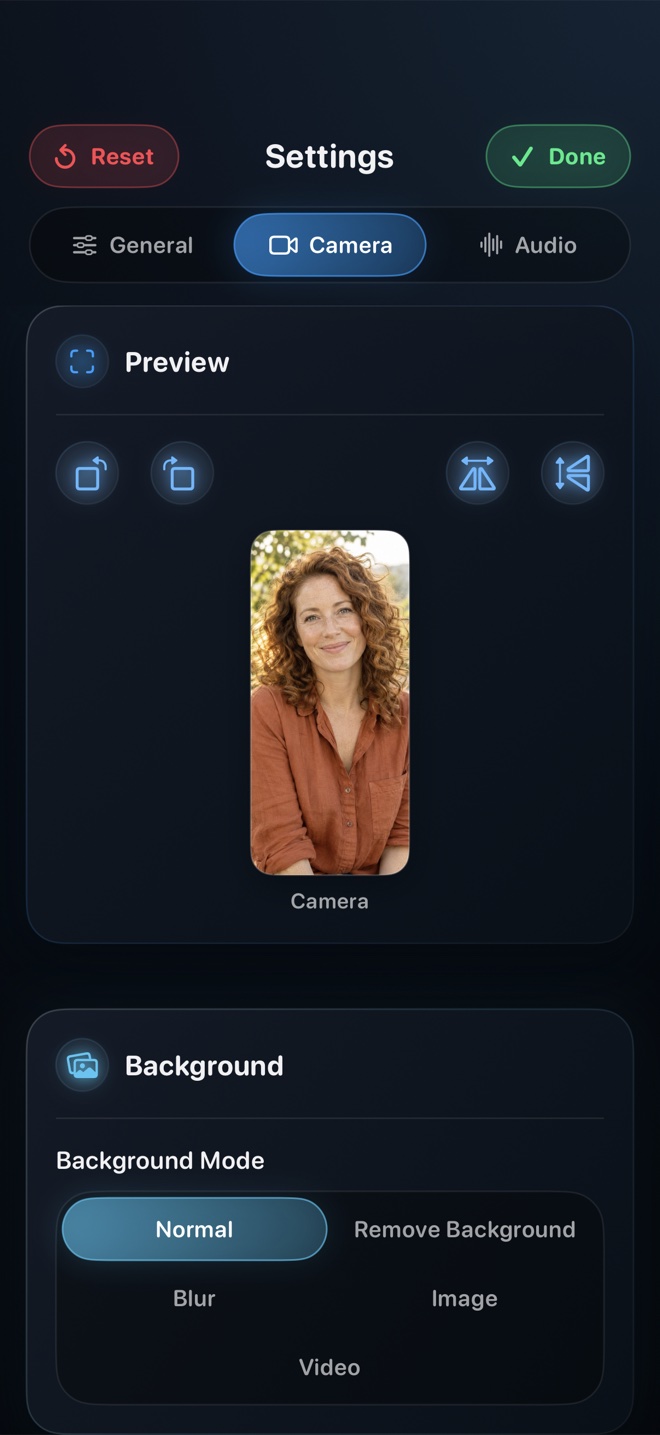
Pick TikTok or Instagram's built-in Green Screen effect when reacting to a single static screenshot inside one social platform. Pick Reel Screen Recorder ($0 free 1080p MP4, zero watermark) when you want to demonstrate live scrolling apps across your iPhone with a floating Picture-in-Picture facecam, or play a saved video inside Reel's iOS video player mode while ducking clip audio underneath your voice—producing one master MP4 you can cross-post everywhere.
| Creator Need | Reel Screen Recorder (iOS) | TikTok / IG Green Screen | iOS Control Center + CapCut |
|---|---|---|---|
| Demonstrate live third-party iPhone apps + facecam | Yes — live cross-app PiP over any non-DRM app | No — only overlays camera onto saved media | Requires filming face separately & syncing in CapCut |
| Master 1080p MP4 reusable on TikTok + Reels + Shorts | Yes — clean watermark-free MP4 in Photos | Platform-locked unless exported with platform badge | Yes — after timeline assembly and render |
| Play a saved clip + record live commentary in one take | Yes — built-in iOS video player mode + camera | Possible via Duet/Green Screen Video inside one app | Requires multi-track import in CapCut |
| Live app-sound ducking under voiceover | Yes — independent App Audio & Mic gain sliders | Basic original-sound slider after recording | Adjusted manually on editing timeline |
| Portrait 9:16 orientation lock | Yes — locks vertical canvas before broadcast starts | Always vertical | Can accidentally flip if phone rotates |
| On-device facecam background blur / custom loop | Yes — neural blur, image/video backdrop, or in-app cutout | Built-in social AR effects | CapCut auto-cutout in post |
Respecting TikTok, Reels & Shorts UI Safe Zones
Every vertical feed covers the right edge with profile/like/share icons and the bottom 20% with your handle and caption text. If your facecam sits in the bottom-right corner, platform chrome covers half your face.
During a Reel broadcast, park your Picture-in-Picture facecam in the upper-left or upper-right quadrant whenever you are demonstrating content near the center of the screen, and drag it smoothly whenever you need to reveal a top navigation button.
Why One Clean Master Beats Platform-Locked Effects
Recording directly inside TikTok locks your raw take inside one ecosystem—and downloading a published TikTok to repost on Instagram Reels or YouTube Shorts stamps a bouncing watermark onto the file.
Capturing your screen + facecam in Reel saves a clean, unbranded 1080p MP4 into iOS Photos first, so you can upload native first-generation files to TikTok, Reels, Shorts, X, and LinkedIn simultaneously.
| Feed Specification | Reel Screen Recorder | Why Short-Form Algorithms Care |
|---|---|---|
| Free 1080p vertical geometry | 1080px short-side cap preserving native tall iPhone aspect | Matches 1080×1920 vertical feed delivery without blurry upscaling |
| Codec & color space | Hardware HEVC MP4 in predictable SDR color | Avoids jarring HDR brightness shifts or washed-out web uploads |
| Audio sync & mixdown | Single-track stereo AAC mixed live (optional Two-Track) | Eliminates lip-sync drift on Bluetooth or multi-clip edits |
| Safe-zone camera placement | Draggable PiP window movable mid-recording | Keep your face clear of right-side like buttons and bottom captions |
| Watermark status | Zero watermark on free 480p, 720p, and 1080p | Social platforms never penalize your clip for rival app logos |
Adding Auto-Captions Without Double Encoding Loss
If you want animated word-by-word captions, record at 1080p (free) or Source Native (Reel Pro) in Reel, drop that single MP4 into CapCut or Instagram's caption tool, generate captions in one tap, and export.
| Short-Form Format | Recommended Workflow | Time Saved |
|---|---|---|
| 60-second 'How to use this iPhone app' tutorial | Reel Screen Recorder (Free 1080p) | Publish straight from Photos or add auto-captions in 2 minutes |
| Commentary on a saved clip in your Camera Roll | Reel iOS Video Player Mode + Camera | Watch, pause, and react live with balanced clip/mic volume |
| Heavy meme cuts, kinetic captions & sound effects | Record master in Reel → Polish in CapCut | Best of both worlds: one-take capture + fast auto-subtitles |
| Trendy Duet tied to a native TikTok audio ID | TikTok Native Duet / Stitch | Links directly to the original TikTok sound page |
Frequently Asked Questions
What resolution should I pick in Reel for TikTok, Reels, and Shorts?
Choose 1080p (included free in Reel). TikTok, Instagram Reels, and YouTube Shorts all standardize around 1080p vertical delivery, so 1080p gives crisp UI text with compact upload sizes.
Can I react to a video saved in my iPhone Photos without leaving Reel?
Yes! On iPhone and iPad, Reel includes an in-app video player mode that lets you load a saved video from Photos, play it inside Reel alongside your live floating camera (including transparent cutout mode), and balance clip sound against your mic.
Why do HDR iPhone videos sometimes look overexposed on social apps?
Some web and social uploaders tone-map HDR inconsistently. Reel records in standard SDR color so your skin tones and app UI look consistent everywhere.
Related Comparisons & Production Guide
One-Time Lifetime vs Weekly Subscription iOS Screen Recorders
Compare 1-year and 3-year costs of iOS screen recorders: $5–$8/week subscriptions vs built-in iOS tools vs Reel Screen Recorder's $14.99 lifetime Pro.
Offline Local Screen Recorders vs Cloud Recorders: Privacy Compared
Compare offline local MP4 screen recorders (Reel, QuickTime, OBS) vs cloud link tools (Loom, Vidyard, Zight) for NDA privacy, GDPR, and Airplane Mode.