Pick wired macOS QuickTime Player or `xcrun simctl io recordVideo` ($0) when you want uncompressed ProRes/H.264 device capture with Apple's status bar auto-cleaned to 9:41 for strict App Store Connect conforms. Pick Reel Screen Recorder ($0 for 1080p, $14.99 lifetime Pro for Source Native pixels) when you want untethered on-device Retina MP4 capture with pure internal UI sound (mic muted) for App Previews AND one-take Picture-in-Picture founder demos for launch social videos.
| Developer Deliverable | Reel Screen Recorder (Pro Native) | Wired Mac QuickTime Capture | Xcode Simulator `recordVideo` |
|---|---|---|---|
| Real iPhone/iPad GPU animations & haptics | Yes — runs directly on real Apple hardware | Yes — captures real USB-connected iPhone/iPad | Simulated — lacks real camera, ARKit & Metal pacing |
| Pure internal UI audio with mic 100% muted | Yes — mute Mic slider, keep App Audio at 100% | Yes — captures clean USB digital device audio | Limited simulator audio capture |
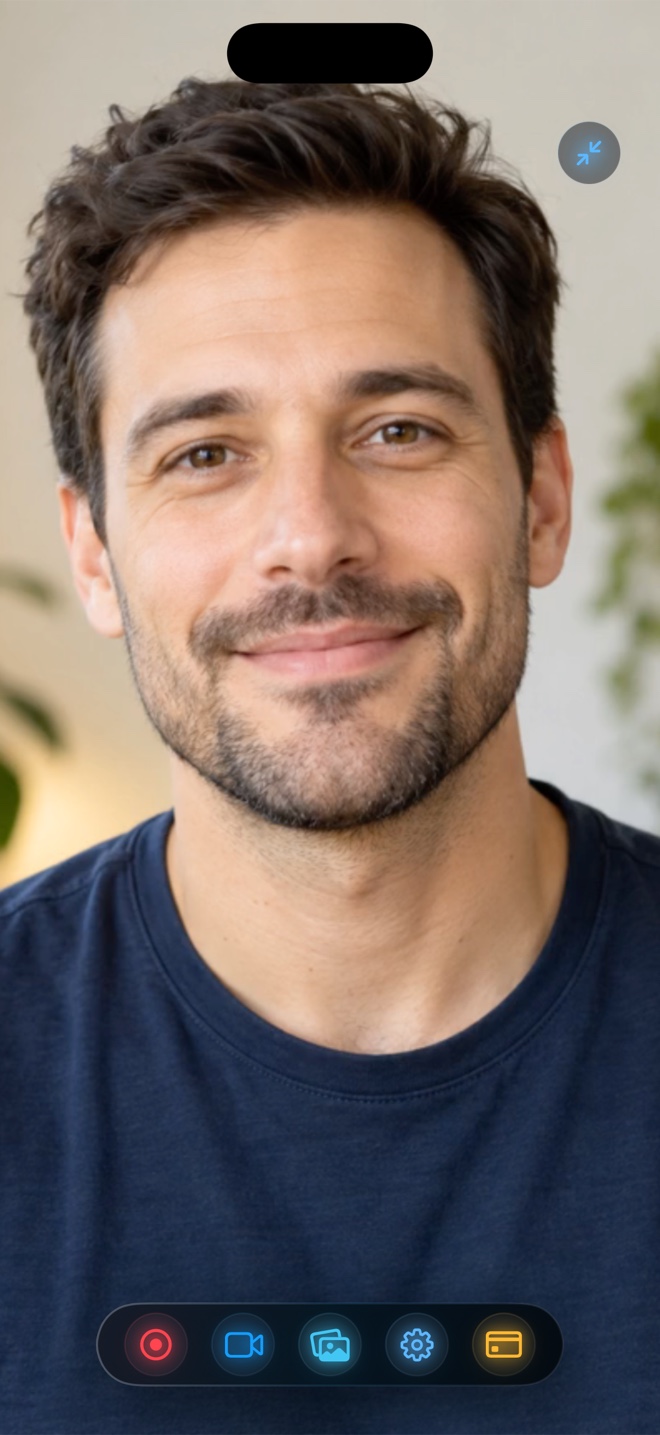
| Founder facecam mode for Product Hunt / X / Ads | Yes — cross-app PiP facecam + background blur | Requires compositing a second webcam in NLE | No presenter camera workflow |
| Untethered capture (outdoor / AR / camera apps) | Yes — zero cables required | No — requires USB cable to a Mac | No — desktop simulator only |
| Auto-override iOS status bar to 9:41 full bars | No — use iOS Developer Settings or mask in NLE | Yes — QuickTime overrides status bar over USB | Configurable via `simctl status_bar` |
| Native macOS app demo capture | Yes — display picker, hide Reel window, `⌘R` | Yes — QuickTime / Screenshot Toolbar | iOS/iPadOS/tvOS/visionOS simulators only |
Two Launch Videos Every Indie App Actually Needs
Apple's App Review guidelines treat official App Store Preview slots strictly as product-only screen captures: 15 to 30 seconds, no off-screen photography, and no talking-head overlays. By contrast, social launch videos on X, Product Hunt, Reddit, and Meta ads convert dramatically better when a human founder explains the problem in a floating facecam.
Reel handles both passes from the same setup: record Pass 1 with Camera Off and Mic Muted for pure UI + sound design, then flip PiP Camera and Mic On for Pass 2 to deliver your narrated founder pitch.
Conforming Source (Native) Captures for App Store Connect
App Store Connect validates exact pixel dimensions (such as 886×1920 or 1080×1920 depending on device class) and caps App Previews at 30 frames per second. Because modern ProMotion iPhones have taller Retina pixel grids and 60fps animations, even native captures typically go through a quick 30-second export preset in Final Cut Pro, Premiere, DaVinci Resolve, or Compressor to hit Apple's exact upload matrix.
Starting from Reel Pro's Source (Native) tier ensures that UI typography and thin 1px borders stay razor-sharp during that conform pass.
| Specification | Apple App Store Connect Rule | How Reel Screen Recorder Aligns |
|---|---|---|
| Clip duration | 15 to 30 seconds maximum per App Preview | Record untimed local MP4, then trim best 20–28s take in QuickTime/NLE |
| Facecam / hands rule | Official App Preview slots forbid people/facecams; social ads encourage them | Toggle Camera Off for App Store slot; toggle PiP Camera On for social launch trailer |
| Resolution & aspect ratio | Exact portrait/landscape App Store Connect canvas sizes | Reel Pro Source (Native) preserves crisp Retina pixels ready for NLE canvas conform |
| Frame rate & audio | Up to 30 fps; stereo 48kHz PCM/AAC 256kbps (or silent track) | Exports clean stereo AAC inside standard `.mp4` |
| Watermark / third-party badges | Strictly prohibited by App Review | Reel exports 100% watermark-free MP4 on both Free and Pro tiers |
Prepping Your iPhone Before Hitting Record
Turn on Focus / Do Not Disturb so incoming banners never interrupt a clean take, switch your app to sample/demo data with no personal emails visible, and lock Portrait or Landscape inside Reel before starting the broadcast.
| Launch Video Type | Recommended Tool | Why It Wins |
|---|---|---|
| Strict 30-second App Store Connect slot at a desk ($0) | Wired QuickTime or Reel Pro (Camera Off) | Clean internal sound and crisp Retina UI pixels |
| Product Hunt, LinkedIn & X founder launch walkthrough | Reel Screen Recorder (PiP Camera On) | Viewers see the founder's face while tapping real iOS gestures in one take |
| AR, camera, GPS, or workout app demo away from desk | Reel Screen Recorder | Untethered mobile Broadcast Extension works anywhere without a Mac cable |
| Paid TikTok / Meta UA ad variants (9:16 hook + app demo) | Reel Screen Recorder | Lock Portrait 1080p, record 5 hook variations in 5 minutes straight to Photos |
Frequently Asked Questions
Can I upload a video with a floating facecam directly into App Store Connect?
Apple's App Preview guidelines require footage of the app itself without people on camera—so disable Reel's camera overlay for the App Store Connect upload, and use Reel's PiP facecam for your website, Product Hunt, YouTube, and social ad trailers.
How do I record internal app sound effects without room noise for an App Preview?
In Reel's Audio tab, mute the Microphone channel completely while leaving System/App Audio active. Your MP4 will contain pure digital UI sound with zero room hiss.
Why choose Reel Pro over free 1080p for developer demos?
Reel Pro ($0.99/mo, $9.99/yr, or $14.99 lifetime) unlocks Source (Native) Retina resolution, preserving maximum pixel sharpness when you zoom into small UI controls during trailer editing.
Related Comparisons & Production Guide
Best Tutorial & Online Course Screen Recorders for iPad & iPhone
Compare iPad and iPhone screen recorders for online courses, Apple Pencil lessons, and coaching: Reel Screen Recorder vs Loom vs Camtasia desktop workflows.
Best iPhone Screen Recorder for TikTok, Instagram Reels & Shorts
Compare vertical 9:16 iPhone screen recording workflows for TikTok, Instagram Reels, and YouTube Shorts: Reel Screen Recorder vs CapCut vs native app cameras.