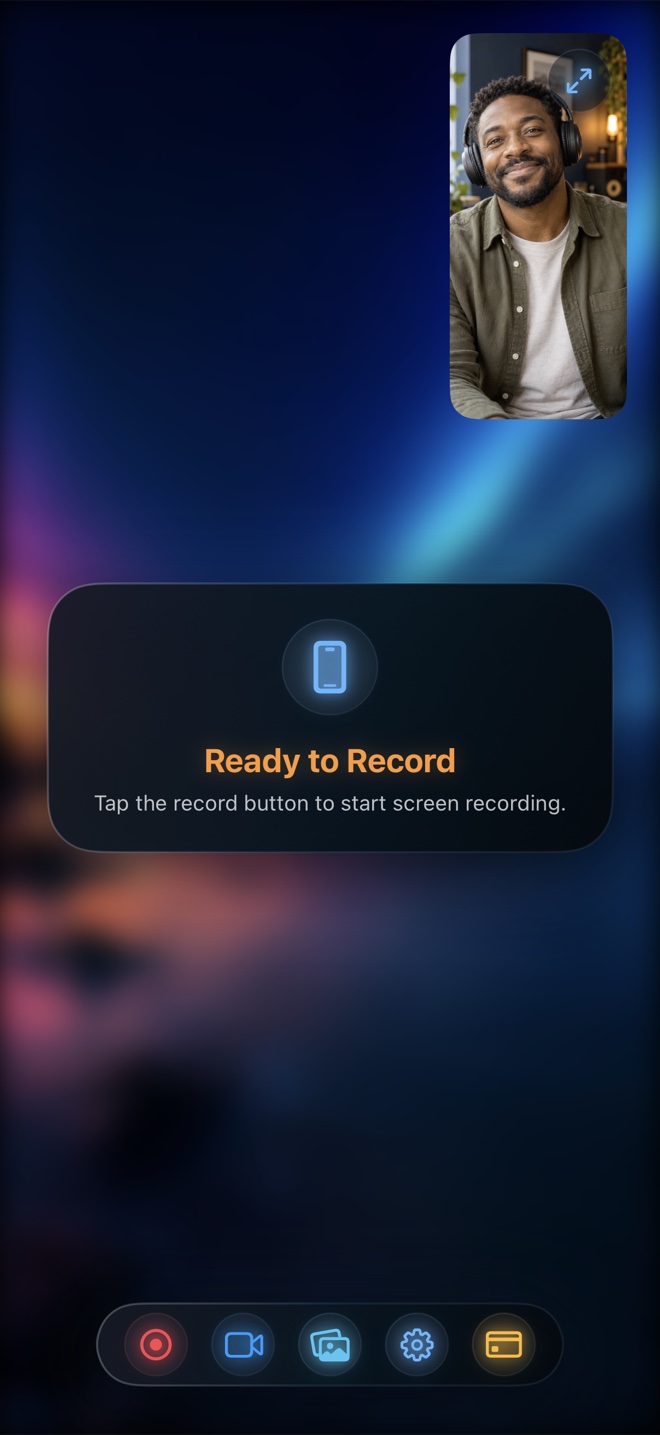
Pick an external USB-C HDMI capture card + desktop OBS ($150–$250 hardware) if you stream multi-hour competitive esports at a desk and want zero encoding overhead on the phone itself. Pick Reel Screen Recorder for standalone mobile gaming anywhere: it locks Landscape framing before game launch, ducks loud game audio below your headset mic in real time, keeps your live reaction facecam floating in Picture-in-Picture, and encodes hardware HEVC MP4 up to smooth 60fps on iOS/iPadOS (plus 30/60/120 fps preferences on Mac).
| Gaming Requirement | Reel Screen Recorder (iOS/iPadOS) | iOS Built-In Control Center | USB-C Capture Card + Desktop OBS |
|---|---|---|---|
| Balance loud game SFX vs voice commentary | Yes — lower App Audio slider while keeping Mic clear | No — game SFX often overpowers built-in mic | Yes — desktop OBS audio mixer |
| Live reaction facecam over gameplay | Yes — native Picture-in-Picture floating camera | No live camera support | Requires separate desktop webcam in OBS |
| Landscape orientation lock before boot | Yes — prevents portrait splash-screen sideways bugs | Sometimes locks portrait if started on Home Screen | Follows HDMI output handshake |
| Hardware-accelerated 60fps video | Yes — hardware HEVC MP4 following iOS ReplayKit frames | Yes — hardware ReplayKit capture | Yes — 60fps / 120fps depending on card |
| Standalone portability (couch / travel) | 100% standalone on iPhone or iPad | 100% standalone | Tethered to desk, Mac/PC, and wall power |
| In-game CallKit / party voice chat rule | Subject to iOS VoIP/mic contention rules | Subject to identical iOS mic rules | Captures HDMI mix (with chat-link cable if needed) |
Solving the #1 Mobile Gaming Audio Problem: Loud Explosions vs Quiet Mic
Action RPGs, shooters, and rhythm games master their internal audio near 0 dBFS. When you record with iOS Control Center and Mic On, you either shout over the soundtrack or dig into every single game's settings menu before recording.
Reel's Audio tab gives you dedicated App Audio and Microphone gain sliders—and you can even adjust them mid-session if a cutscene gets too loud. Enable Two-Track preservation if you want isolated vocal and gameplay stems inside Final Cut Pro or Premiere.
Why Wired Earbuds Beat AirPods for 60fps Action Games
As soon as any app activates the microphone on iPhone or iPad with Bluetooth earbuds connected, Bluetooth switches from high-fidelity stereo playback to bidirectional voice mode—adding noticeable wireless latency and narrower game audio bandwidth.
Plugging in inexpensive wired USB-C (or Lightning) earbuds keeps full-frequency stereo game sound with zero wireless delay while positioning an inline mic right below your chin.
| Technical Dimension | Reel Screen Recorder | iOS Control Center | External Capture Card |
|---|---|---|---|
| Video encoder | Apple Media Engine hardware HEVC (.mp4) | Apple Media Engine hardware HEVC/H.264 | Host PC/Mac GPU (NVENC / VideoToolbox) |
| Resolution options | Free 480p / 720p / 1080p; Pro Source (Native) | Native screen resolution only | 1080p60 or 4K60 pass-through |
| Mac gaming capture support | Native macOS app with 30 / 60 / 120 fps preference | macOS Screenshot Toolbar (30/60fps) | Can capture secondary console/iPad via USB |
| Audio track layout | Stereo mix default + optional Two-Track preservation | Mixed stereo or separate ReplayKit tracks | Multi-track MKV/MP4 in OBS |
| Recommended monitoring gear | Wired USB-C / Lightning earbuds (zero Bluetooth lag) | Wired earbuds recommended | Wired studio headphones into capture card/PC |
Keeping Thermals Cool During High-Frame-Rate Sessions
Running a 3D game plus camera segmentation plus native Retina encoding warms up any fanless phone. Choosing Reel's free 1080p tier (instead of full ProMotion Retina pixels) significantly reduces encoder memory bandwidth while still delivering crisp 1080p60 video for YouTube and mobile feeds.
| Gamer Profile | Recommended Setup | Why It Fits Best |
|---|---|---|
| YouTube & TikTok mobile gameplay + facecam ($0–$14.99) | Reel Screen Recorder | Records facecam, ducked game sound, and 1080p60 MP4 in one pass |
| Quick 20-second silent highlight clip ($0) | iOS Built-In Recorder | Instant two-tap Control Center capture |
| 4-hour Twitch live stream at a desk ($150+) | Capture Card + OBS Studio | Offloads encoding heat and supports Twitch/YouTube RTMP overlays |
| Desktop Mac game recording up to 120 fps | Reel Screen Recorder on Mac | ScreenCaptureKit display picker + 120 fps preference + `⌘R` hotkey |
Frequently Asked Questions
Why did my landscape iPhone game record sideways?
If a broadcast starts while iPhone is still on the portrait Home Screen, ReplayKit can lock portrait dimensions. Select Landscape orientation inside Reel before starting the broadcast so widescreen games stay 16:9 from frame one.
Can I record in-game squad voice chat and my own mic at the same time on iOS?
Games that open an exclusive VoIP/microphone session can restrict ReplayKit audio capture under iOS system rules. Test a 15-second clip with your specific game's voice chat enabled before recording a full match.
Does Reel support 120fps recording?
On Mac, Reel exposes 30, 60, and 120 fps capture preferences for supported displays via ScreenCaptureKit. On iPhone and iPad, frame delivery is governed by Apple's ReplayKit broadcast pipeline (typically up to 60fps).
Related Comparisons & Production Guide
Best Screen Recorders for App Store Previews & Launch Videos
Compare tools for filming App Store Preview videos and launch trailers on iPhone, iPad, and Mac: Reel Screen Recorder vs Xcode/QuickTime vs CleanShot X.
Best Tutorial & Online Course Screen Recorders for iPad & iPhone
Compare iPad and iPhone screen recorders for online courses, Apple Pencil lessons, and coaching: Reel Screen Recorder vs Loom vs Camtasia desktop workflows.