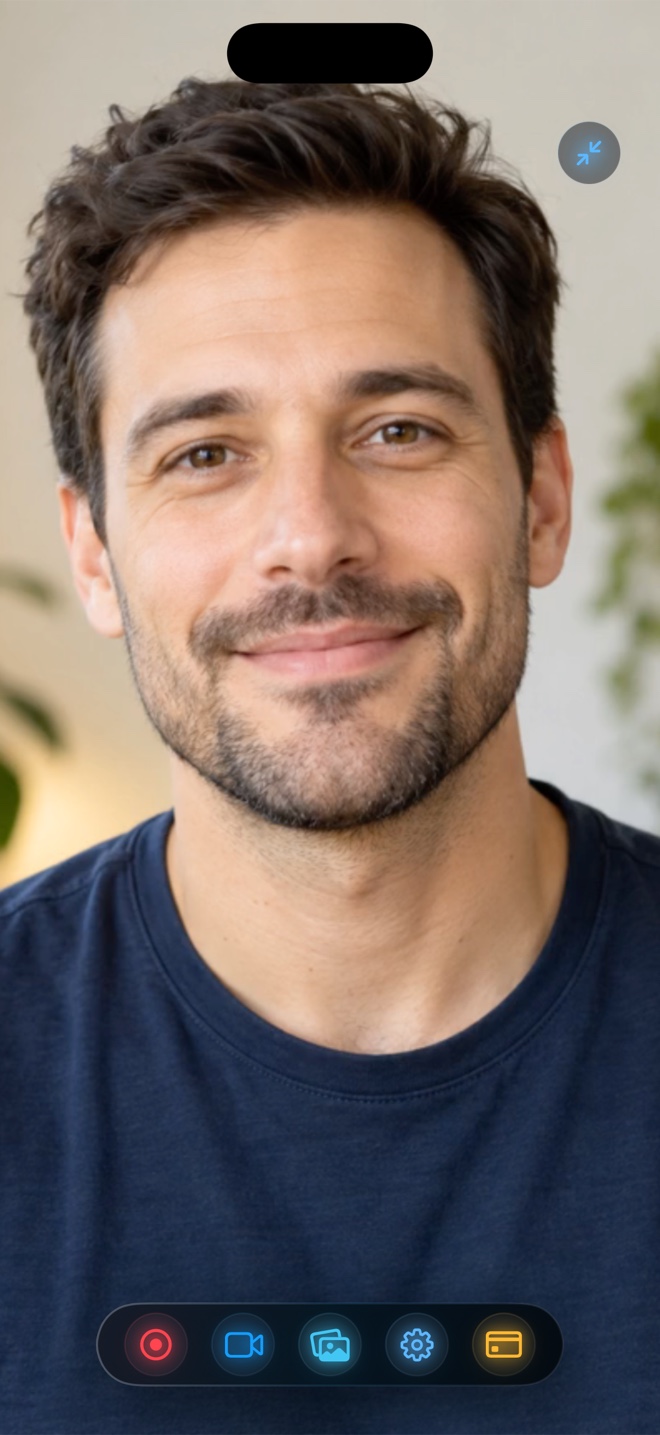
Pick **Live Picture-in-Picture in Reel Screen Recorder** ($0 free up to 1080p) whenever speed, genuine real-time eye contact, live corner dragging, and zero timeline syncing matter—cutting production time by more than half. Pick a **Post-Recording Timeline Overlay** (e.g. filming a second camera + compositing in Final Cut/CapCut) only when you require circular/transparent alpha cutouts over third-party apps or want to edit mistakes out of your voiceover separately from screen taps.
| Dimension | Live Cross-App PiP (Reel) | In-App Studio View (Reel) | Post-Recording Overlay (NLE / 2-Pass App) |
|---|---|---|---|
| Works over ANY third-party iOS app live | Yes — Safari, games, Figma, Notes, Home Screen | Inside Reel (e.g. In-App Video Reaction player) | Screen recorded alone first; face added later |
| Recording passes & render wait | 1 real-time pass · 0s post-render wait | 1 real-time pass · 0s wait | 2 passes + manual sync + export render |
| Overlay shape & background modes | Rectangular iOS PiP card with neural blur or photo/video backdrop | Draggable overlay supporting blur, backdrop, OR transparent cutout | Circle, rectangle, or keyed cutout on timeline |
| Drag or resize facecam mid-action | Yes — flick between corners or pinch size live | Yes — position, flip & rotate freely | Keyframed manually in post-production |
| Spoken timing vs finger taps | 100% organic real-time alignment | 100% real-time alignment | Prone to late/rehearsed commentary feel |
| Storage footprint | Single finished MP4 | Single finished MP4 | Raw screen clip + raw face clip + exported master |
Honest iOS Engineering: Rectangular PiP vs Transparent Cutouts
Understanding one Apple OS rule makes framing effortless: inside Reel's own window, neural person segmentation can cut your background out transparently. However, when you swipe out to third-party apps on iPhone or iPad, Apple's system Picture-in-Picture window always renders inside a clean rounded rectangle that does not pass transparent alpha pixels through to underlying apps.
That is why Reel thoughtfully disables transparent cutout specifically for cross-app PiP while keeping **Portrait Blur** and **custom photo/video backdrops** active—so your floating rectangular card always looks intentional instead of showing a black box.
Why Single-Pass Speed Multiplies How Much You Publish
Most creators don't quit making tutorials because their camera wasn't round—they quit because syncing two files and waiting on mobile export bars turns a 90-second tip into a 30-minute chore. When stopping the broadcast immediately saves a finished MP4, you actually hit publish.
| Technical Rule | How iOS Handles PiP | Practical Takeaway |
|---|---|---|
| Why cross-app PiP is rectangular | Apple's `AVPictureInPictureController` renders an opaque rounded-corner system window | Use Reel's Portrait Blur or studio image backdrop in PiP (transparent cutout is for in-app view) |
| Screen capture inclusion | ReplayKit Broadcast captures the entire display stack, PiP window included | Zero post-compositing pass required |
| Apps playing full-screen video | Opening another PiP video stream can contend with camera PiP | For reacting to saved video clips, use Reel's built-in iOS video player mode! |
| Mac facecam flexibility | ScreenCaptureKit composites camera directly OR pops out a separate window | Even more layout freedom on macOS |
| Neural Engine usage | Hardware-accelerated person segmentation on device | Zero cloud camera frames |
Choreographing PiP Moves Around the iOS Keyboard
Whenever a tutorial involves typing in Safari or Notes, start with your PiP facecam in the top-left or top-right corner so the rising keyboard never collides with your face—and flick the bubble across the top edge anytime you need to tap a top-right Save button.
| Creator Scenario | Best Facecam Method | Why |
|---|---|---|
| Daily app walkthroughs, onboarding & founder updates | Live Cross-App PiP in Reel | Ship polished 1080p MP4s in 2 minutes instead of 25 |
| Reacting to a saved video clip on iPhone | Reel In-App Video Player + Camera Overlay | Plays clip + records live facecam together without leaving Reel |
| Scripted marketing trailer needing circular mask & B-roll cuts | 2-Device Capture + Final Cut / CapCut | Timeline editors let you hide/show the camera track between cuts |
| Desktop software walkthrough on Mac | Reel on Mac (composited camera + Hide Reel Window) | Clean corner presenter view with `⌘R` start/stop |
Frequently Asked Questions
Why can't any iPhone app show a circular or transparent-background floating head over Instagram or Safari?
Apple only allows third-party apps to float live video over other apps via the system Picture-in-Picture (`AVPictureInPictureController`) window, which iOS draws as an opaque rounded rectangle.
Can I switch between front and back cameras in Reel?
Yes—choose front camera for presenter tutorials or back camera when showing hardware, sketches, or desk gear.
Does moving the PiP window mid-recording show up smoothly in the MP4?
Yes! Because ReplayKit records the live screen composition, Apple's smooth spring animation as the PiP snaps to a new corner is captured cleanly.
Related Comparisons & Production Guide
Screen Recording FaceTime, Zoom, Teams & Discord Audio: iOS vs Mac Rules
Why do iPhone screen recordings mute FaceTime, Zoom, or Discord audio? Compare iOS VoIP privacy rules vs macOS ScreenCaptureKit call capture and consent.
Bluetooth AirPods vs Wired & USB-C Mics for iPhone Screen Recording
Why do AirPods sound muffled vs wired earbuds or USB-C mics when screen recording on iPhone? Compare Bluetooth HFP bandwidth, latency, and echo isolation.