Two different locks
iOS has a rotation lock in Control Centre. It stops the interface rotating, but some apps — video players, games — ignore it and rotate anyway, and the recording follows them. Reel's Lock Orientation in Settings → General is a lock on the recording layout itself: whatever the device does, the captured frame keeps the orientation it started with.
When to lock
- Recording for Reels, Shorts or TikTok: lock portrait, always.
- Recording a landscape game: lock landscape before you start, hold the phone that way, and it will not flip when you set it down.
- Recording yourself to camera while moving: lock, or the camera bubble and the frame will fight.
When not to
A walkthrough of an app that genuinely changes orientation — a video player that goes landscape when you tap fullscreen — should show that. Leave the lock off and accept the rotation as part of the demo.
Asked often enough to write down.
Does the lock affect the camera bubble?
The bubble follows the recording layout, so yes — it stays where you put it relative to the locked frame.
Read next
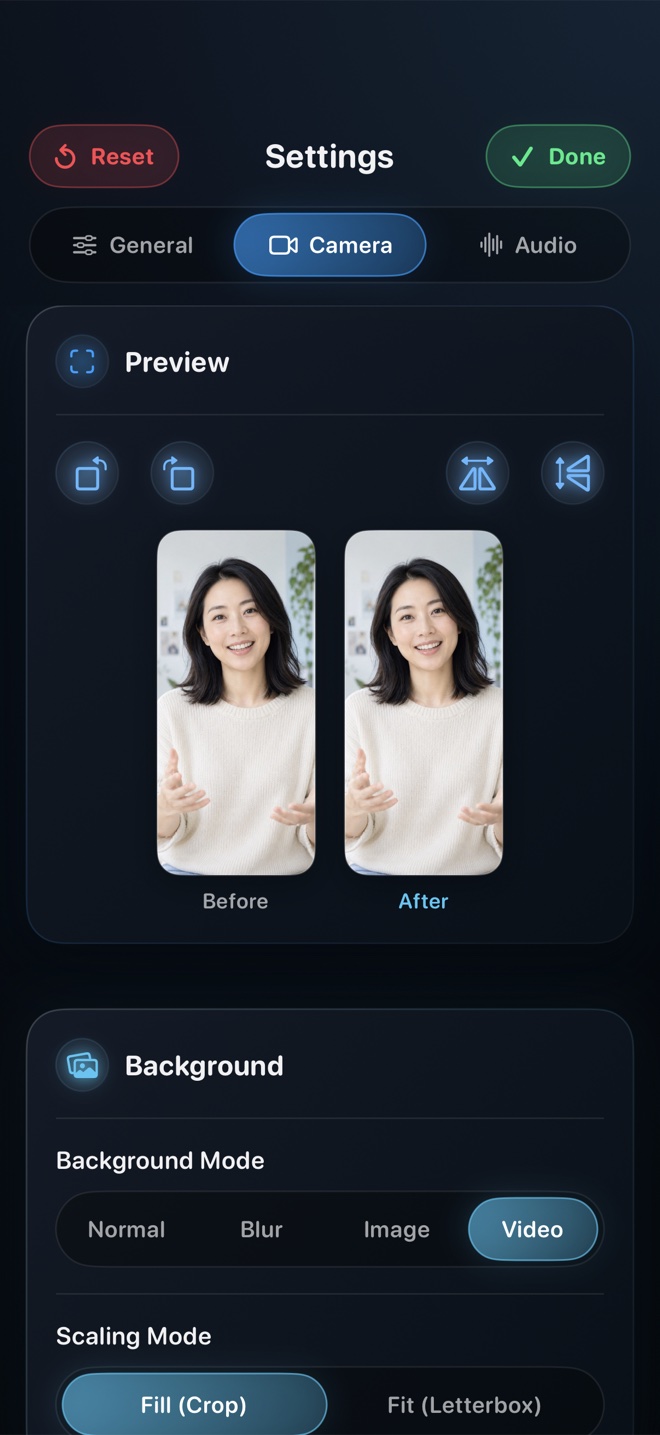
Record iPhone gameplay with a facecam
How to record a mobile game with your camera in the corner: orientation, keeping the bubble out of the HUD, game audio versus voice, and file sizes for long sessions.
Read guide →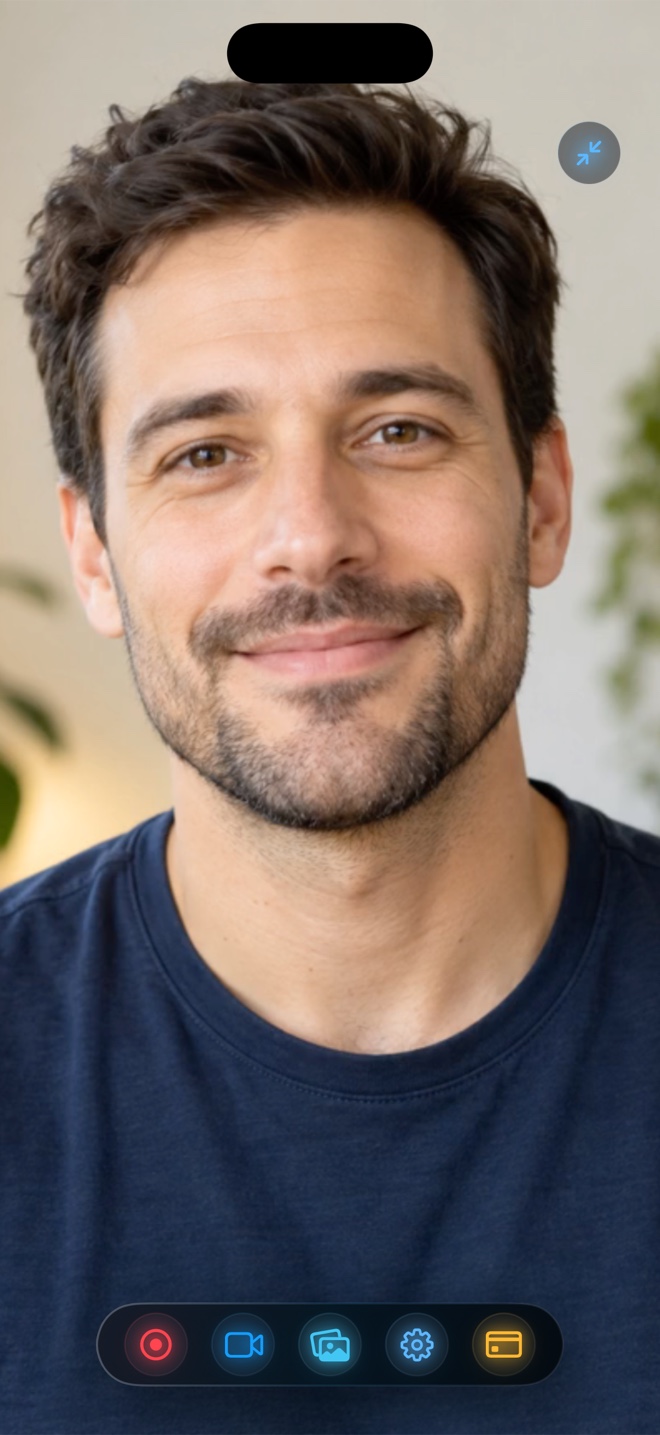
How to screen record on iPhone — and how to be in the video
Recording your iPhone screen with the built-in recorder, step by step, what it cannot do, and how to capture the screen and your camera in one take without editing them together.
Read guide →